Blog
All Blog Posts | Next Post | Previous Post

 Free Database Generator Sample with our Next Generation Data Grid for Delphi
Thursday, July 30, 2026
Free sample
Why build reports around a DataGrid?
Many application reports begin in exactly the same way: connect to a database, execute a query, inspect the result, make a few visual decisions, and send the data somewhere else. The destination may be a browser, an API, a PDF archive, a CSV import, or an Excel workbook, but most of the work before that point is identical.
A traditional report designer is invaluable for invoices, labels, and highly structured documents. For operational reports, however, a data grid is often the more natural authoring surface. Users can see the records immediately, sort a column, apply a filter, and export exactly the view that answers their question.
That idea is the basis of the FNC Database Generator, a free source-included FireMonkey sample built with TMS FNC UI Pack. It connects a FireDAC dataset to TTMSFNCDataGrid and turns the active renderer into a small multi-format reporting engine.
One adapter turns a dataset into a report view
TTMSFNCDataGridDatabaseAdapter connects the dataset to the DataGrid renderer. The important detail is almAllRecords: the report renderer receives the complete result set, not only the records currently needed for the visible viewport.
Adapter.DataSource := DataSource;
Adapter.Renderer := Grid.Root;
Adapter.AutoCreateColumns := True;
Adapter.LoadMode := almAllRecords;
Adapter.Active := True;
The grid then adds the interaction that users expect from a professional data tool:
Alternating row bands for easier scanning.
Single-row selection with a restrained highlight.
Conditional formatting that marks overdue orders in red and paid orders in green.
Stretching columns for a clean desktop layout.
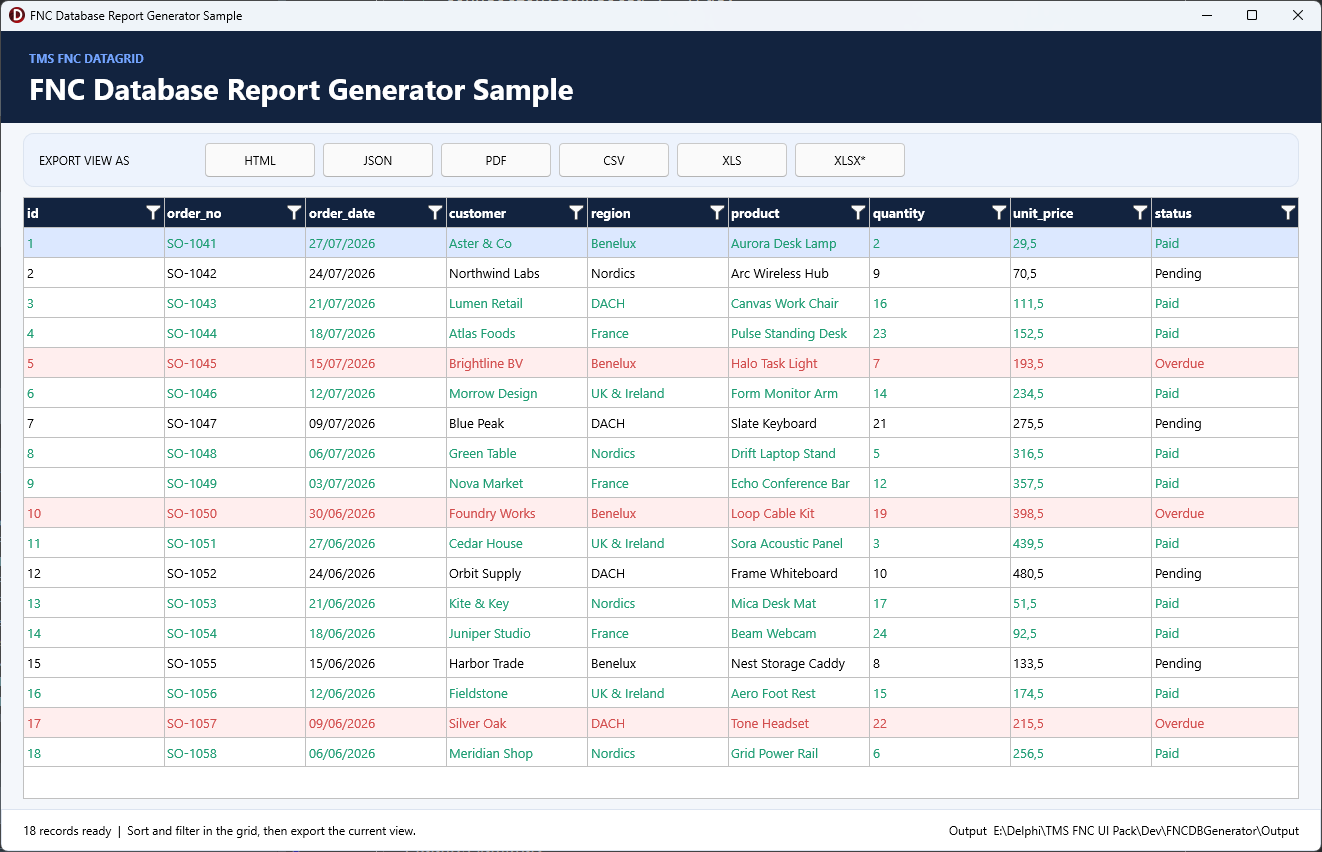
The FMX application keeps connection, preview, and every export action in one focused workspace.
Conditional Formatting
In the sample, some rows are highlighted. This is due to conditional formatting based on the data. The code shows how to apply certain rules while working with dynamic data.
procedure TMainForm.GridGetCellLayout(Sender: TObject;
  ACell: TTMSFNCDataGridCell);
var
  SavedRecord: Integer;
  StatusField: TField;
begin
  if (ACell.Row < Grid.FixedRowCount) or not Adapter.CheckDataSet then
    Exit;

  StatusField := Query.FindField('Status');
  if not Assigned(StatusField) then
    Exit;

  SavedRecord := Adapter.DataLink.ActiveRecord;
  try
    if Adapter.SetActiveRecord(ACell.Row) then
      if SameText(StatusField.AsString, 'Overdue') then
      begin
        ACell.Layout.Fill.Color := $FFFFEEEE;
        ACell.Layout.Font.Color := COLOR_RED;
      end
      else if SameText(StatusField.AsString, 'Paid') then
        ACell.Layout.Font.Color := COLOR_GREEN;
  finally
    Adapter.DataLink.ActiveRecord := SavedRecord;
  end;
end;
HTML and CSV: native renderer exports
The DataGrid renderer already knows which rows and columns belong to the active view. HTML and CSV therefore need only one call each. The generated HTML includes CSS classes for the grid appearance, while CSV applies the configured delimiter and quoting rules.
Grid.SaveToHTMLData(FileName, TEncoding.UTF8);

Grid.Options.IO.Delimiter := ',';
Grid.Options.IO.QuoteEmptyCells := True;
Grid.SaveToCSVData(FileName, TEncoding.UTF8);
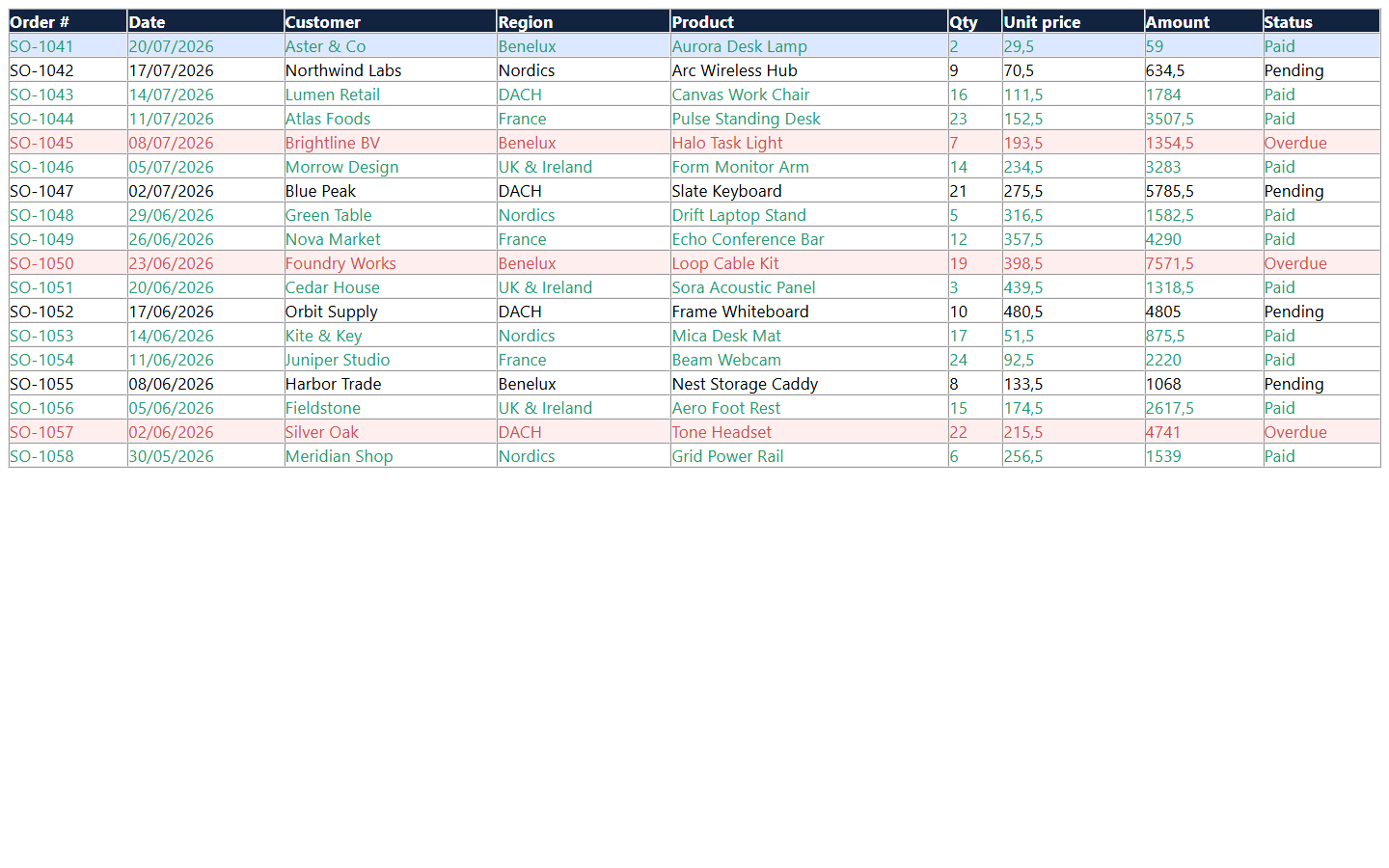
The browser-rendered HTML export carries the same columns, banding, and paid/overdue colors.
JSON: the visible grid as structured data
JSON is deliberately implemented as a small serializer in the demo. It walks the renderer instead of the original query, skips hidden and filtered rows, and uses the fixed header row as property names. This means the JSON payload describes the same report view that the user sees.
for Row := Renderer.FixedRowCount to Renderer.RowCount - 1 do
  if not Renderer.IsRowHidden(Row) and
     not Renderer.IsRowFiltered(Row) then
  begin
    RowObject := TJSONObject.Create;
    for Column := 0 to Renderer.ColumnCount - 1 do
      if not Renderer.IsColumnHidden(Column) then
        RowObject.AddPair(
          TTMSFNCDataGridData.ValueToString(Renderer.Cells[Column, 0]),
          TTMSFNCDataGridData.ValueToString(Renderer.Cells[Column, Row]));
    Rows.AddElement(RowObject);
  end;
The exported document also includes the report name, generation time, and source connection string. In a production application you can replace the last item with a friendly connection name when credentials or host details should not leave the application.
PDF: a report that is ready to share
TTMSFNCDataGridPDFIO handles pagination and draws the DataGrid using the FNC PDF engine. The sample adds a report title, a generated timestamp, page numbers, fit-to-page scaling, and repeated fixed rows.
PDFIO.DataGrid := Grid;
PDFIO.Options.Header := 'SALES PERFORMANCE REPORT';
PDFIO.Options.Footer := 'Generated ' +
  FormatDateTime('dd mmm yyyy, hh:nn', Now);
PDFIO.Options.PageNumber := pnFooter;
PDFIO.Options.PageNumberFormat := 'Page %d';
PDFIO.Options.FitToPage := True;
PDFIO.Options.RepeatFixedRows := True;
PDFIO.Save(FileName);
Because the PDF exporter uses the renderer, the output carries across the navy header, banded rows, and conditional colors. Longer result sets automatically continue on additional pages.
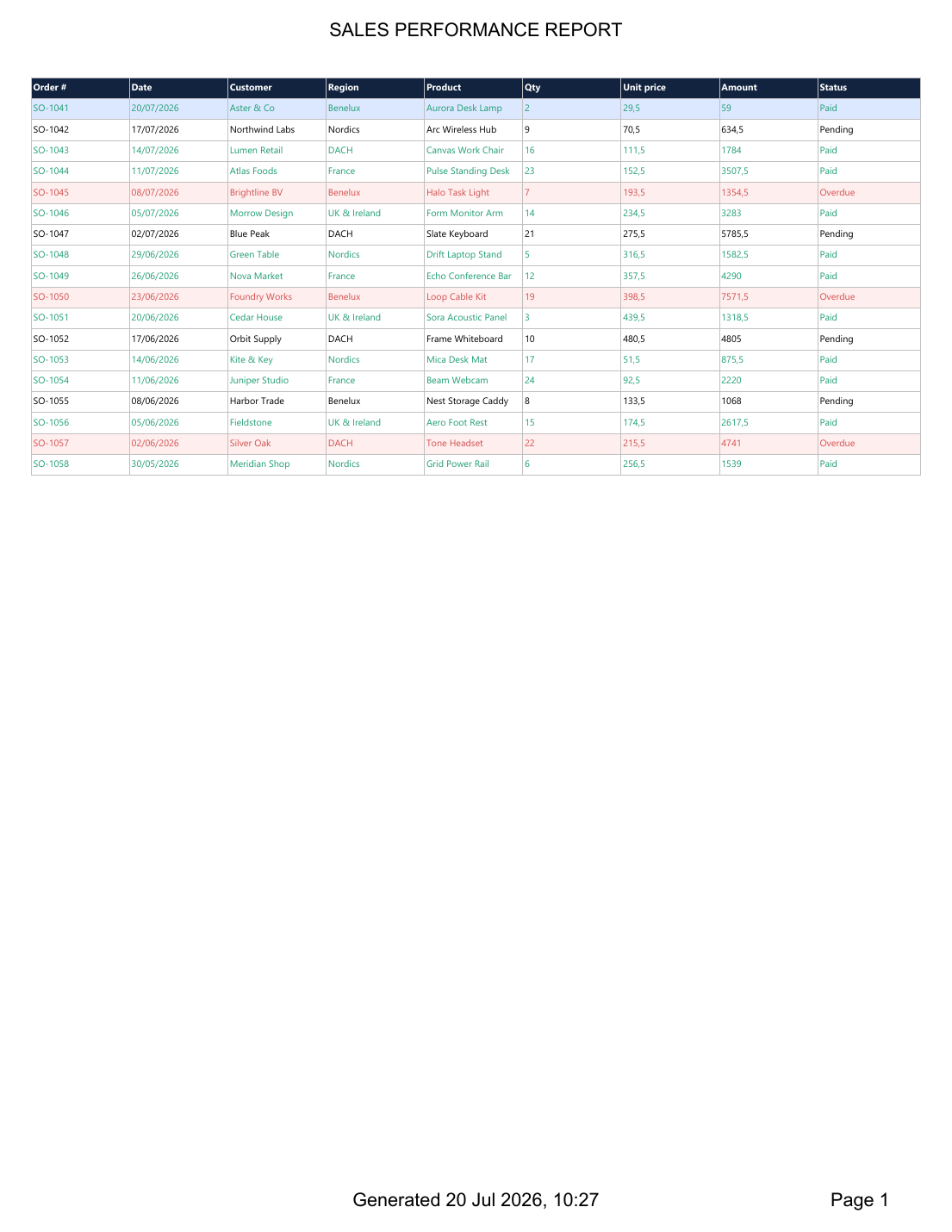
A rendered page from the verified PDF: report title, repeated DataGrid header, styled rows, footer timestamp, and page number.
Excel, in both generations
The sample treats .xls and .xlsx as two real formats rather than two file extensions for the same binary content.
XLS:
TTMSFNCDataGridExcelIOexports the current renderer to the classic Excel binary workbook format and preserves cell properties.XLSX: the optional FlexCel build converts that styled XLS workbook into a genuine modern Office Open XML workbook.
ExcelIO.Renderer := Grid.Root;
ExcelIO.DataGridStartRow := 0;
ExcelIO.DataGridStartCol := 0;
ExcelIO.Options.ExportOverwrite := omAlways;
ExcelIO.Options.ExportCellProperties := True;
ExcelIO.XLSExport(IntermediateXLS, 'Sales report');

Workbook := TXlsFile.Create(IntermediateXLS, True);
try
  Workbook.Save(FileName, TFileFormats.Xlsx);
finally
  Workbook.Free;
end;
FlexCel is optional by design
The built-in DataGrid exporter produces the classic XLS format; changing the extension alone does not make it XLSX. Because TMS FlexCel VCL might not be installed on every development machine, the normal Debug and Release configurations contain no direct FlexCel unit references. Choose the dedicated FlexCel configuration only when that product is installed and its units are on Delphi's search path.
In a core build the toolbar marks the command XLSX*; selecting it gives a clear dependency message instead of producing an XLS file with a misleading extension. A FlexCel build exports an intermediate XLS, converts it to ZIP-based XLSX, and removes the intermediate file. FlexCel is required on the build machine, but users do not install it separately when the finished application is deployed without runtime packages.
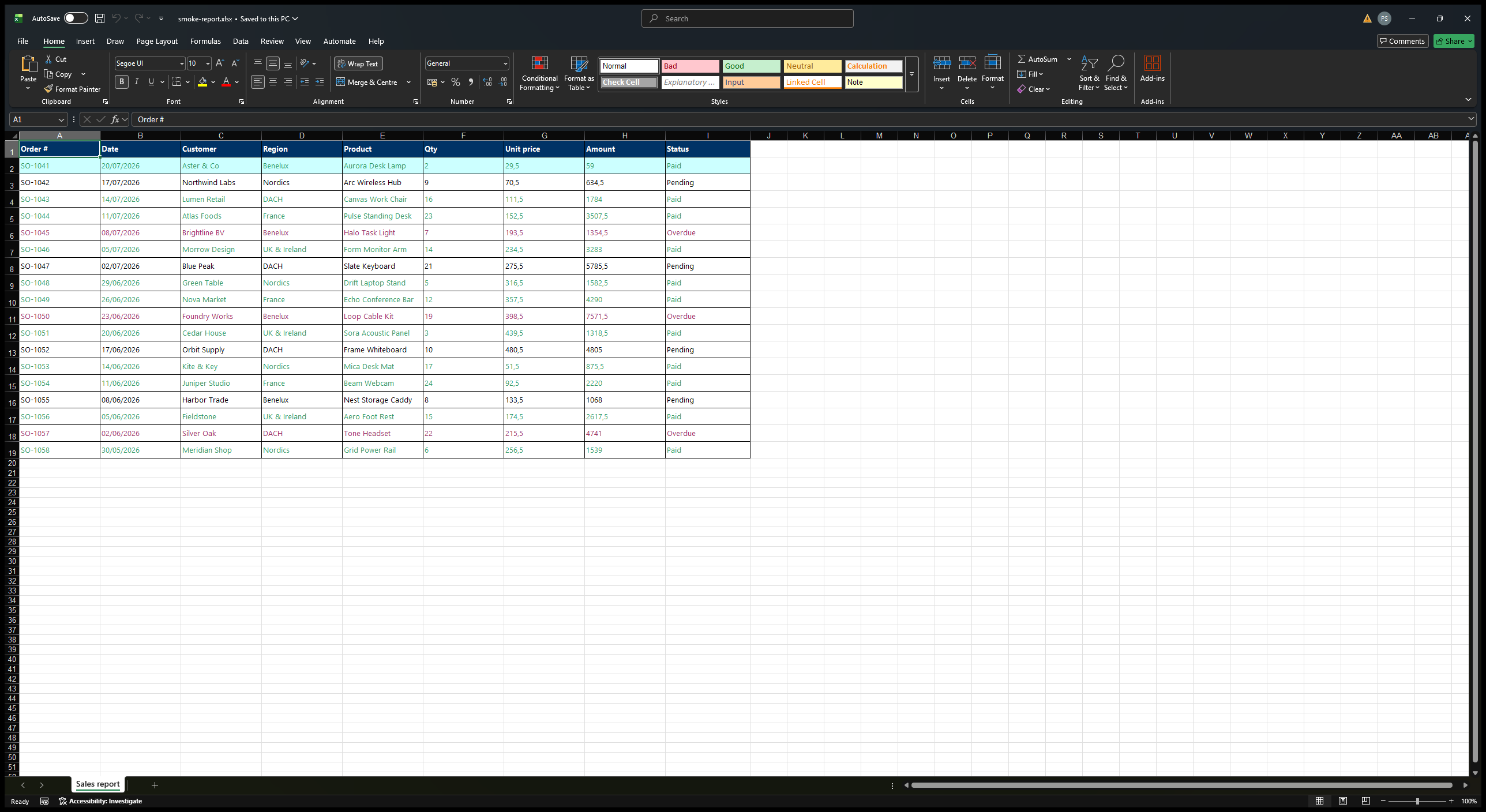
The FlexCel configuration produces a genuine XLSX workbook, shown here opened in Excel with the complete header, first column, banding, and conditional colors intact.
A UI designed for the workflow
The FMX form is intentionally more than a row of test buttons. It uses a dark product header, separate connection and SQL cards, a clear export toolbar, a large report canvas, and a persistent status area that reports the record count and output path. The result feels like a small utility rather than a component test.
All generated files are written to an Output folder beside the executable. This keeps the sample database and every generated report together with the active demo build. When deploying to a platform that protects application bundles, place the application in a writable location or redirect this folder to platform-specific application storage.
Try the FNC Database Generator sample
Download the free FMX source sample and open it directly in Delphi.
Natural next steps include saved report definitions, query parameters, a column chooser, chart summaries, scheduled exports, or cloud upload. The important architectural point stays the same: the DataGrid renderer is the reusable report model, while each output format is a focused adapter around it.
If TMS FNC is installed through Smart Setup, the product family can be installed from the command line:
tms self-update
tms install tms.fnc.*
Conclusion
The FNC Database Generator sample shows how far a database-aware DataGrid can go beyond on-screen browsing. One FireDAC query becomes an interactive report, and one renderer becomes HTML, JSON, PDF, CSV, XLS, or XLSX.
For operational reporting, internal tools, exports, and data handoffs, this approach stays pleasantly direct: query the data, make the grid look right, and let the current view become the report.
Pieter Scheldeman
Related Blog Posts
-
Next Generation Data Grid for Delphi: Getting Started
-
Next Generation Data Grid for Delphi: Adding, Formatting & Converting Data
-
Next Generation Data Grid for Delphi: Filtering & Sorting
-
Next Generation Data Grid for Delphi: Grouping
-
Next Generation Data Grid for Delphi: Webinar Replay Available!
-
Next Generation Data Grid for Delphi: Cell Controls
-
Next Generation Data Grid for Delphi: Master-Detail
-
Next Generation Data Grid for Delphi: Calculations
-
Next Generation Data Grid for Delphi: Import & Export
-
Next Generation Data Grid for Delphi: Template
-
Next Generation Data Grid for Delphi: Filter Row
-
Next Generation Data Grid for C++: Getting Started
-
Freebie Friday: Next Generation Grid Quick Sample Data
-
Next Generation Data Grid for Delphi: Columns Editor
-
Next Generation Data Grid for Delphi: File Drag & Drop
-
Next Generation Data Grid for Delphi: Visual Grouping
-
Next Generation Data Grid for Delphi: FMX Linux Support
-
Next Generation Data Grid for Delphi: Header & Footer Buttons
-
Next Generation Data Grid for Delphi: Paging
-
Next Generation Data Grid for Delphi: Cell Classes
-
Next Generation Data Grid for Delphi: Excel Style Selection
-
Next Generation Data Grid for Delphi: AutoFill
-
Bridging FlexCel and Our Next-Gen Data Grid
-
Next Generation Data Grid for Delphi: Headless Data Layer
-
Free Database Generator Sample with our Next Generation Data Grid for Delphi
-
Make Your Data Speak: Conditional Formatting in TMS FNC Data Grid 2.0
-
Data Report with Filtering and Conditional Formatting

This blog post has not received any comments yet.
All Blog Posts | Next Post | Previous Post