Blog
All Blog Posts | Next Post | Previous Post

 Data Report with Filtering and Conditional Formatting
Today
In our previous blog post, Creating a Database Report Generator with TMS FNC DataGrid , we created a flexible report generator capable of loading database data and exporting the current view to several different formats.
This time, we're taking that same project a step further.
Instead of focusing on generating the report, we want to give the user more control over what they see and how they see it.
For this, we've added:
- Filtering
- Advanced filtering
- Conditional formatting
- A built-in conditional formatting editor
- Saving and loading formatting and filter settings
What makes these additions particularly interesting is not only what they add to the application, but how little code is actually required to enable them.
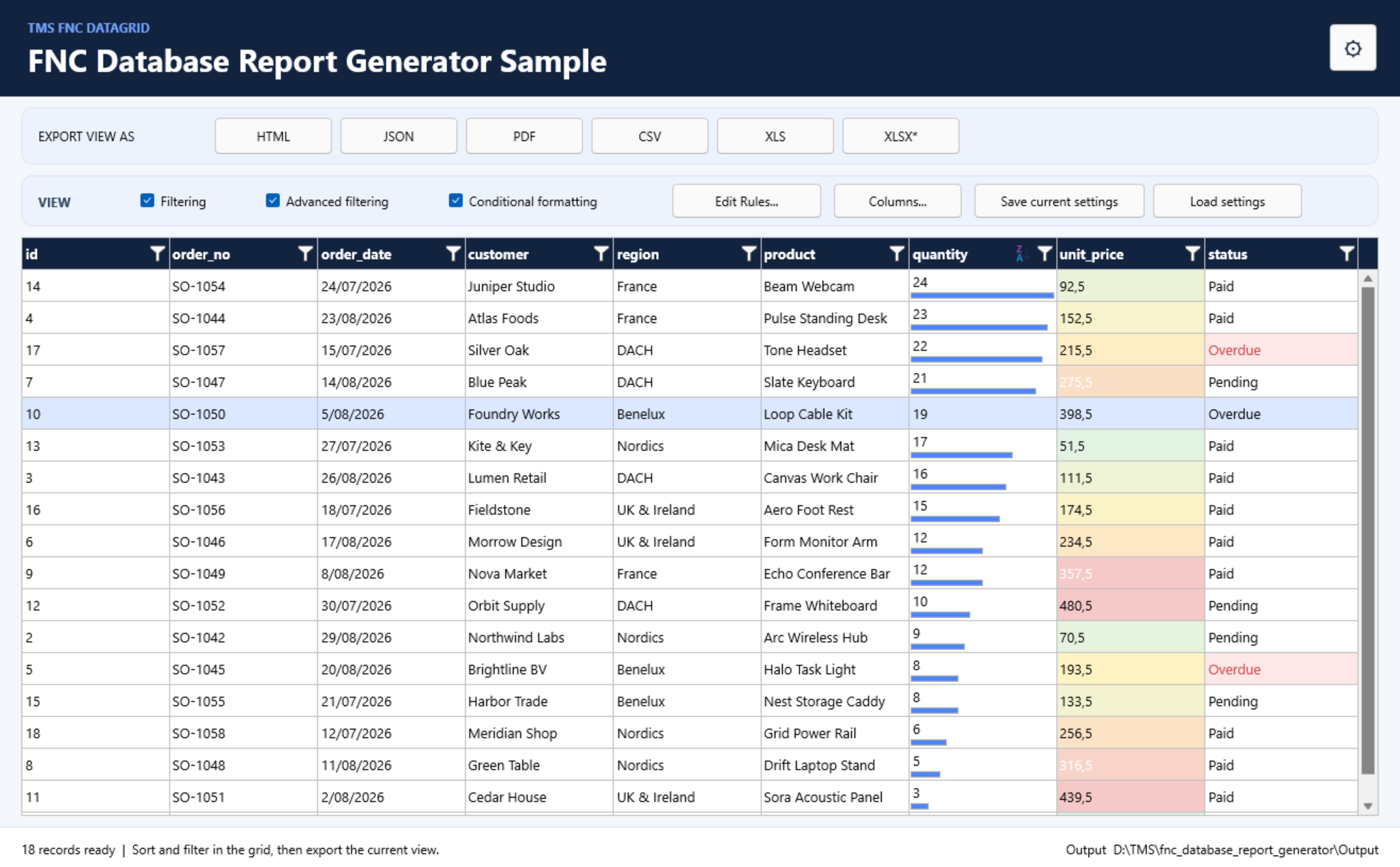
A lot of this functionality is already built directly into TTMSFNCDataGrid.
Starting from our Report Generator
We'll continue with the database report generator from the previous blog post.
That project already takes care of connecting to the database, displaying the data in TTMSFNCDataGrid, and exporting the resulting report. We won't repeat that implementation here.
Instead, we'll focus entirely on making that data more interactive.
Adding Filtering: One Line
Giving users the ability to filter the data displayed in the grid requires:
Grid.Options.Filtering.Enabled := True;That's it.
With one property, the DataGrid gets its filtering interface.
In the sample, we've exposed this through a checkbox:
Grid.Options.Filtering.Enabled := CheckFiltering.IsChecked;The user can now enable or disable filtering without us having to create a separate filtering interface, parse values or manually build a filtering system around the grid.
This is a good example of the low-code approach behind the DataGrid: enable the capability and let the component provide the UI and behaviour.
Need More? Enable Advanced Filtering
For more complex datasets, a simple filter value isn't always enough.
A user might want to specify whether a value should be equal to, greater than, smaller than or otherwise compared against another value.
For that, we can switch the existing filtering functionality into its advanced mode:
Grid.Options.Filtering.Advanced := True;Again, we're talking about one line of Delphi code.
Instead of building an advanced filter interface ourselves, the DataGrid provides the richer operator-based filtering UI.
In our application, the user can switch between both modes:
Grid.Options.Filtering.Advanced := CheckAdvancedFilter.IsChecked;This means we can progressively expose more functionality without making the basic interface more complicated than necessary.
Enable filtering when you need it. Enable advanced filtering when you need more control.
No separate filtering system needs to be developed.
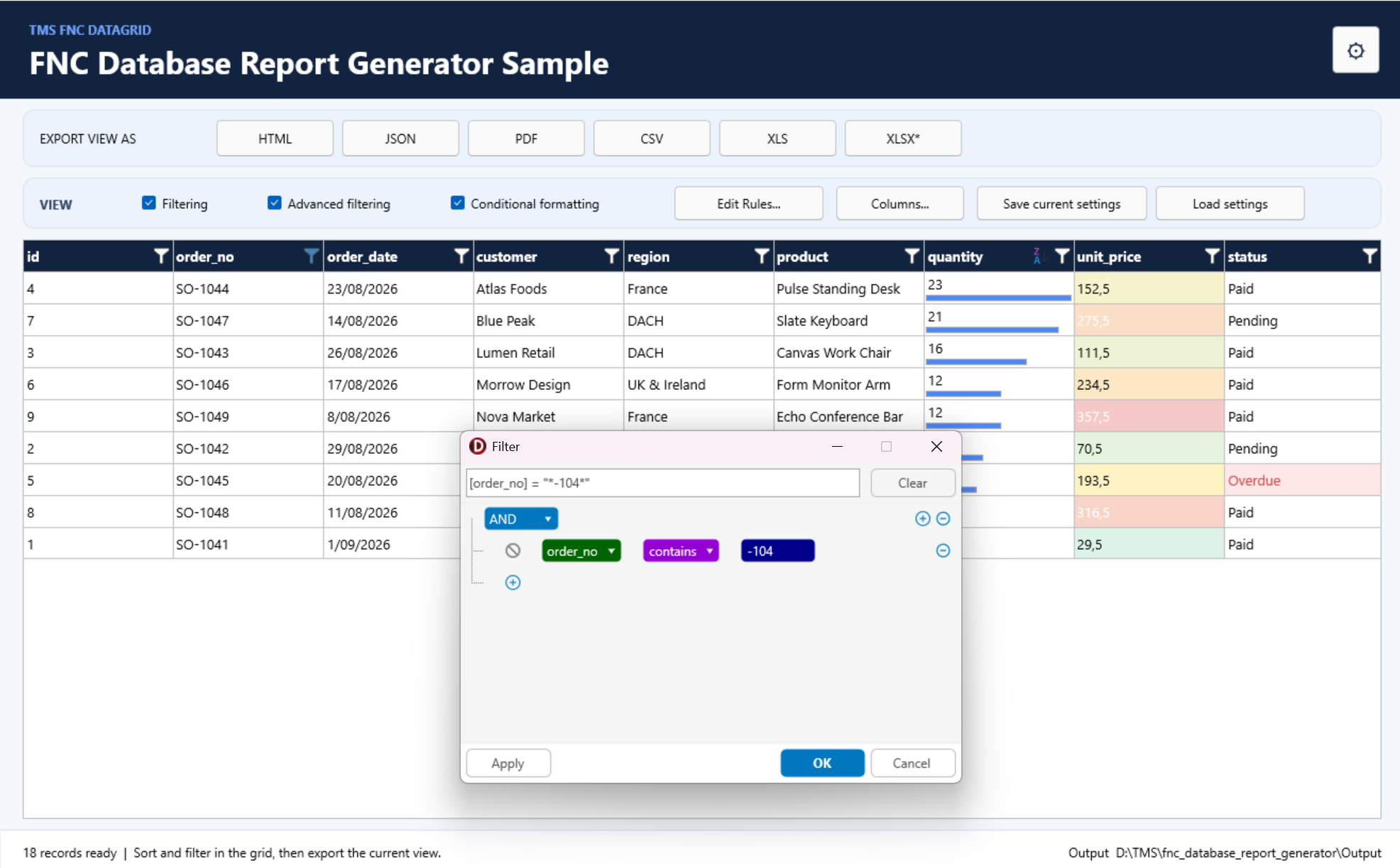
Conditional Formatting: A Brand-New DataGrid Feature
Filtering helps users find the information they're interested in. Conditional formatting helps them see important information immediately.
Conditional formatting is a brand-new feature in TTMSFNCDataGrid. We introduced the feature in more detail in:
our dedicated conditional formatting blog post .
If you want to learn more about the available rules and how conditional formatting works internally, that blog post is the best place to start. Here, we'll focus on how easily we can add it to our existing report generator.
Enabling conditional formatting requires:
Grid.ConditionalFormatting.Enabled := True;Once again, one line is enough to enable an entirely new layer of functionality in our application.
Conditional formatting can then be used to visually distinguish values using rules such as:
- Data bars
- Colour scales
- Top-N values
- Value-based highlights
This can turn a regular table of database records into something much easier to scan and interpret.
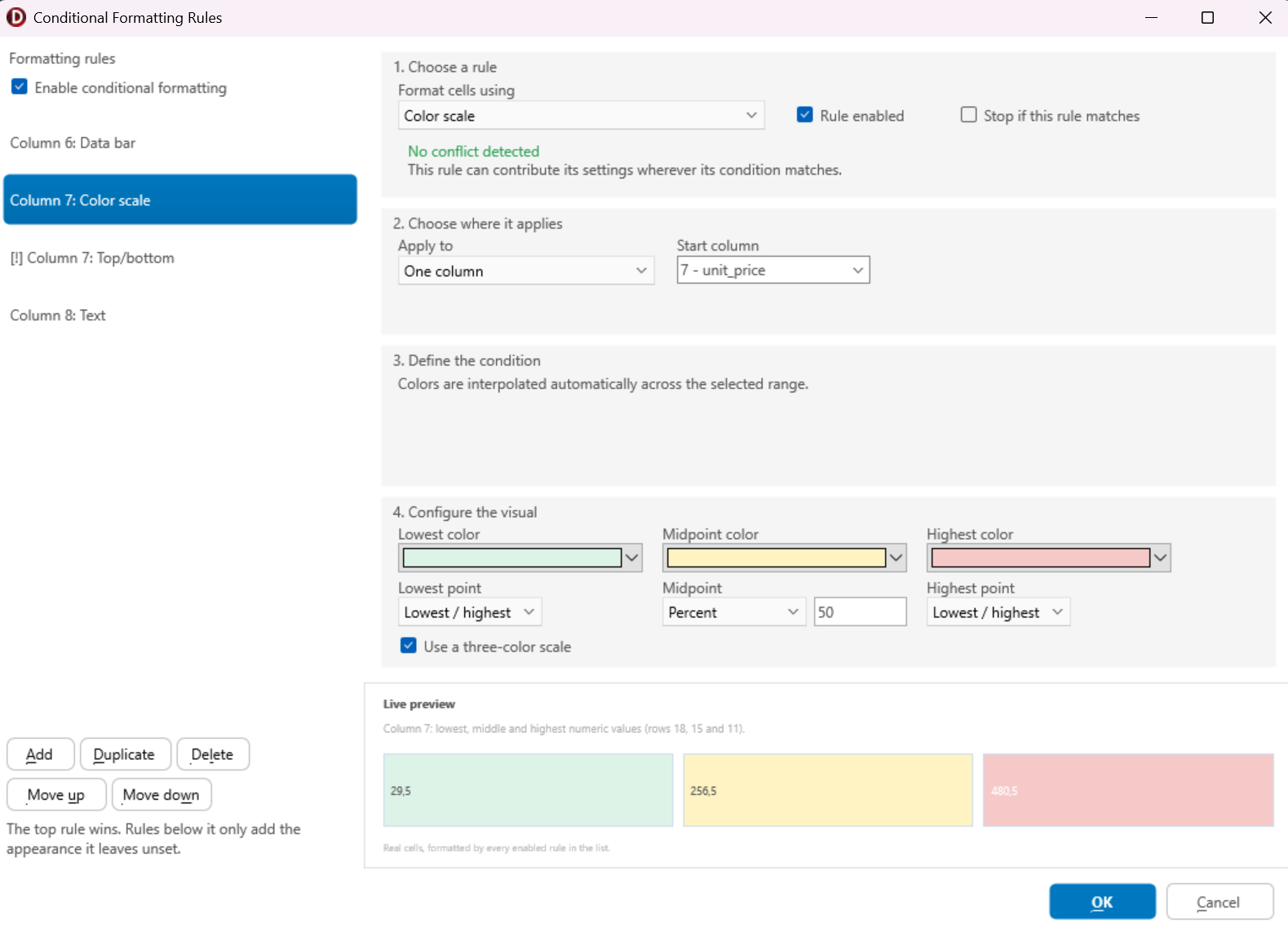
Let the User Create the Rules
Enabling conditional formatting is useful, but we don't necessarily want to decide all the rules beforehand.
The person using the report may know much better which values deserve attention.
So why not give them access to the built-in conditional formatting editor?
Grid.Root.ShowConditionalFormattingEditor;With this single call, we can open the DataGrid's conditional formatting editor.
Users can add, remove and configure their own conditional formatting rules at runtime.
That means we don't need to create a custom rule editor, separate forms for the different rule types, or the logic required to maintain all those rules ourselves.
procedure TMainForm.ButtonEditRulesClick(Sender: TObject);
begin
  Grid.Root.ShowConditionalFormattingEditor;
end;
This is where the low-code aspect becomes particularly valuable.
We're not simply enabling a visual effect with one line of code. We're exposing an entire configuration interface with it.
Configure Once, Use Again
After spending time configuring filters and conditional formatting, users probably don't want to recreate everything the next time they start the application.
So the sample also adds the ability to save the current configuration.
For conditional formatting, TTMSFNCDataGrid already provides serialization of its rules:
Grid.ConditionalFormatting.SaveToJSONStream(Stream);The resulting JSON can later be loaded again with:
Grid.ConditionalFormatting.LoadFromJSONStream(Stream);The sample stores the conditional formatting configuration in:
FNCDBReporterFormatting.jsonFor filtering, we can retrieve the current filter expression through:
Grid.Filter.FilterTextThe sample stores this expression separately in:
FNCDBReporterFilter.iniWhen the application starts again, the saved expression can be assigned back to the FilterBuilder:
Grid.FilterBuilder.FilterText := FilterText;and applied:
Grid.RemoveFilter; Grid.ApplyFilter;This gives us an easy way to restore a previously configured report view.
Save Your Report View
Together, these features introduce an interesting concept to our original report generator.
We're no longer just saving or exporting data.
We're allowing users to configure a view of that data.
For example, imagine a sales report where somebody:
- Enables advanced filtering.
- Filters the report to a particular region or product range.
- Adds a conditional formatting rule to highlight high-value orders.
- Adds another rule to draw attention to low-performing values.
- Saves the configuration.
The next time the report is opened, that configuration can be restored and applied to the latest data.
The data may have changed, but the way the user wants to analyse it hasn't.
A Lot of Functionality, Very Little Code
This extension of the sample demonstrates something that is easy to overlook when looking at a feature list.
Adding filtering sounds simple until you have to create the filtering UI. Advanced filtering means operators, different value types and additional UI. Conditional formatting means defining rules, rendering them and preferably providing an editor. Saving those settings means serialization and restoration.
With TTMSFNCDataGrid, the core functionality is already available.
The essential calls are remarkably small:
// Filtering
Grid.Options.Filtering.Enabled := True;
// Advanced filtering
Grid.Options.Filtering.Advanced := True;
// Conditional formatting
Grid.ConditionalFormatting.Enabled := True;
// Open the rule editor
Grid.Root.ShowConditionalFormattingEditor;
// Save formatting
Grid.ConditionalFormatting.SaveToJSONStream(Stream);
// Load formatting
Grid.ConditionalFormatting.LoadFromJSONStream(Stream);
This is the real advantage of the approach.
A few lines of Delphi code can expose functionality that would otherwise require complete interfaces and considerable application logic.
You remain in control of when and where the functionality is available, while TTMSFNCDataGrid takes care of most of the implementation.
From Static Report to Interactive Report
Our original project demonstrated how TTMSFNCDataGrid could be used as the foundation of a database report generator.
With these additions, that report becomes much more interactive.
Users can decide which information matters, narrow down larger datasets, visually identify interesting values and preserve their preferred configuration for later use.
And perhaps most importantly for us as Delphi developers, we didn't have to build all those systems from scratch.
Sometimes adding a powerful feature really can be just one line of code.
Gjalt Vanhouwaert
Related Blog Posts
-
Next Generation Data Grid for Delphi: Getting Started
-
Next Generation Data Grid for Delphi: Adding, Formatting & Converting Data
-
Next Generation Data Grid for Delphi: Filtering & Sorting
-
Next Generation Data Grid for Delphi: Grouping
-
Next Generation Data Grid for Delphi: Webinar Replay Available!
-
Next Generation Data Grid for Delphi: Cell Controls
-
Next Generation Data Grid for Delphi: Master-Detail
-
Next Generation Data Grid for Delphi: Calculations
-
Next Generation Data Grid for Delphi: Import & Export
-
Next Generation Data Grid for Delphi: Template
-
Next Generation Data Grid for Delphi: Filter Row
-
Next Generation Data Grid for C++: Getting Started
-
Freebie Friday: Next Generation Grid Quick Sample Data
-
Next Generation Data Grid for Delphi: Columns Editor
-
Next Generation Data Grid for Delphi: File Drag & Drop
-
Next Generation Data Grid for Delphi: Visual Grouping
-
Next Generation Data Grid for Delphi: FMX Linux Support
-
Next Generation Data Grid for Delphi: Header & Footer Buttons
-
Next Generation Data Grid for Delphi: Paging
-
Next Generation Data Grid for Delphi: Cell Classes
-
Next Generation Data Grid for Delphi: Excel Style Selection
-
Next Generation Data Grid for Delphi: AutoFill
-
Bridging FlexCel and Our Next-Gen Data Grid
-
Next Generation Data Grid for Delphi: Headless Data Layer
-
Free Database Generator Sample with our Next Generation Data Grid for Delphi
-
Make Your Data Speak: Conditional Formatting in TMS FNC Data Grid 2.0
-
Data Report with Filtering and Conditional Formatting

This blog post has not received any comments yet.
All Blog Posts | Next Post | Previous Post