Blog
All Blog Posts | Next Post | Previous Post

 Open beta: one TMS.NET Maps codebase for WinForms, WPF, .NET MAUI and Blazor
Monday, October 12, 2026
In July we introduced TMS.NET Maps as a closed beta: the FNC Maps engine, rebuilt natively for WinForms, WPF, .NET MAUI and Blazor. Since then, closed beta testers have put it through real projects, sent us bug reports and API feedback, and told us which rough edges to sand down first. To everyone who took part: thank you.
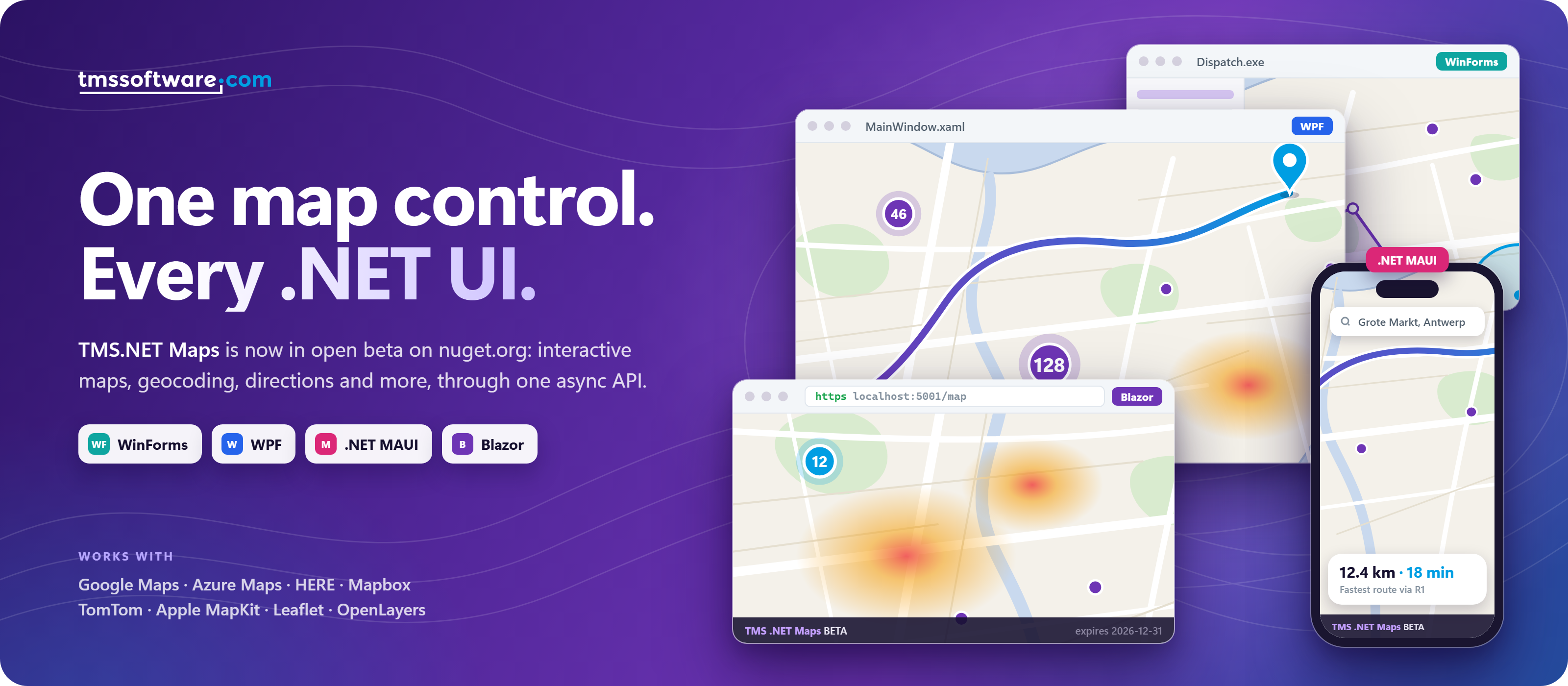
Today we are taking the next step: TMS.NET Maps is now in open beta on nuget.org. There is no invitation, no private feed and no feed credentials to set up. Add a package, request a free beta key, and you have a map running in a few minutes.
- Public on nuget.org: one self-contained package per framework, installed with a regular
dotnet add package. - Free beta license key: request one on the TMS .NET page. It takes a couple of minutes, and the key is verified completely offline.
- MAUI goes mobile: the .NET MAUI package now targets Android, iOS and Mac Catalyst as well as Windows.
Requirement: .NET 10
TMS.NET Maps is built for .NET 10. You need the .NET 10 SDK, and your project must target .NET 10: net10.0 for Blazor, net10.0-windows for WPF and WinForms, and the .NET 10 Android, iOS, Mac Catalyst or Windows targets for .NET MAUI. .NET Framework and earlier .NET versions are not supported.
Up and running in three steps
1. Install the package for your framework
Make sure your project targets .NET 10 (see the requirement above). Each package is a single assembly that bundles the map control and every companion service: Geocoding, Directions, Elevation, Places, Static Maps, Location and Route Calculator. Pick the one that matches your project:
TMS.Maps.Wpf.Trialfor WPFTMS.Maps.WinForms.Trialfor Windows FormsTMS.Maps.Blazor.Trialfor BlazorTMS.Maps.Maui.Trialfor .NET MAUI (Android, iOS, Mac Catalyst and Windows)
Install one package per project; they are not meant to be combined. They are prerelease packages, so remember --prerelease:
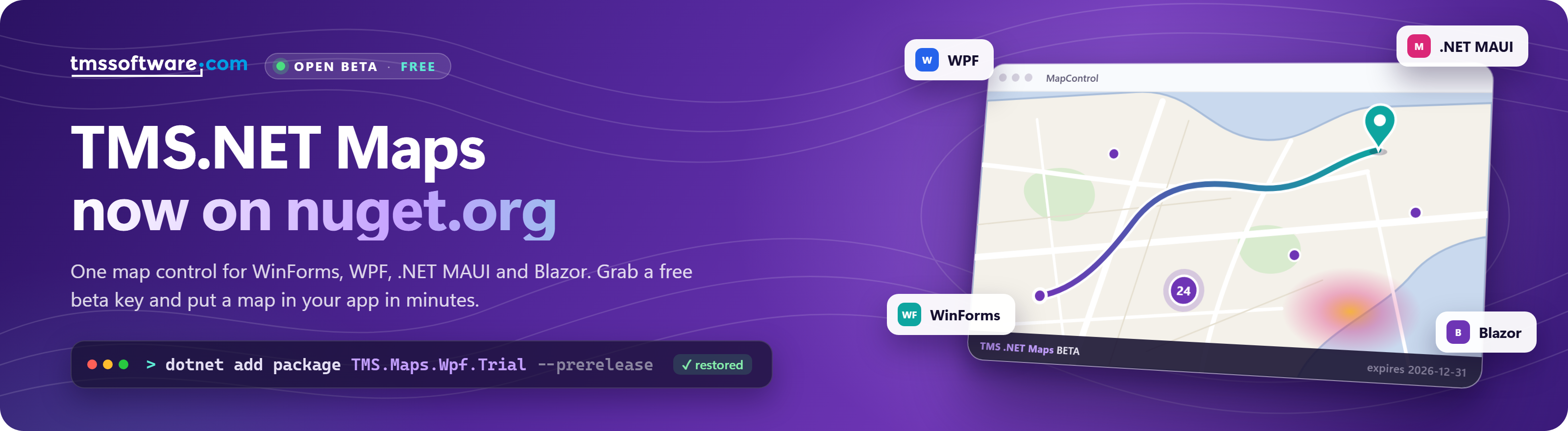
dotnet add package TMS.Maps.Wpf.Trial --prerelease
On Windows the controls render through WebView2, which is preinstalled on Windows 10 and 11. On Android, iOS and Mac Catalyst the MAUI control uses the platform's own web view.
2. Request a beta key and register it
Request your free key on the TMS .NET page, then register it once at startup, for example in App or Program.cs, before any map control or service is created:
using TMS.Maps.Core.Licensing;

TMSLicensing.RegisterLicense("YOUR-BETA-LICENSE-KEY");
The key is checked offline: the SDK never contacts TMS servers, so it works the same on a build server, behind a firewall or on a plane. While the key is valid, a slim "TMS .NET Maps BETA" strip with the expiry date and links to the documentation and feedback runs along the bottom of the map. Without a key, the map shows a placeholder with a link to request one, and service calls throw a TMSLicensingException.
3. Add a map
Here is a WPF window. Leaflet with OpenStreetMap tiles needs no provider API key, so this runs as-is:
<Window x:Class="QuickStart.MainWindow"
        xmlns="http://schemas.microsoft.com/winfx/2006/xaml/presentation"
        xmlns:x="http://schemas.microsoft.com/winfx/2006/xaml"
        xmlns:maps="clr-namespace:TMS.Maps.Wpf;assembly=TMS.Maps.Wpf"
        Title="TMS.NET Maps Quick Start" Height="600" Width="900">

    <maps:MapControl x:Name="Map"
                     Provider="Leaflet"
                     CenterLatitude="51.0543" CenterLongitude="3.7174"
                     ZoomLevel="12"
                     MapReady="Map_Ready"/>
</Window>
private async void Map_Ready(object? sender, EventArgs e)
{
await Map.AddMarkerAsync(new MapMarker(new Coordinate(51.0543, 3.7174), "Ghent"));
}Want Google, Azure Maps or HERE instead? Set Provider and pass your own provider key in ApiKey. The marker code stays exactly the same. Blazor looks just as familiar:
@using TMS.Maps.UI.Web
@using TMS.Maps.Core.Models

<MapControl Provider="Providers.Leaflet"
            CenterLatitude="51.0543" CenterLongitude="3.7174" ZoomLevel="12"
            Width="100%" Height="600px" />
WinForms and MAUI work the same way. The getting started guide walks through every framework step by step.
Using a service: from address to route
The services don't need a map control at all. Construct one with a provider and your provider API key, call an async method and get a typed result back. This example uses the Geocoding service to turn an address into coordinates, then the Directions service to calculate a route from there to Ghent. It works the same in a console app, an ASP.NET Core API or a background job, as long as the beta key is registered first.
using TMS.Maps.Core.Models;
using TMS.Maps.Geocoding;
using TMS.Maps.Directions;

// Geocoding: address to coordinates
using var geocoding = new GeocodingService(Providers.Google, googleApiKey);

var geocodeResult = await geocoding.GetAsync("Grote Markt 1, Antwerp, Belgium");
if (!geocodeResult.IsSuccess)
{
    // The provider's own error message, e.g. an invalid API key
    Console.WriteLine(geocodeResult.Messages.First().Message);
    return;
}

var antwerp = geocodeResult.Data!.First().Coordinate;

// Directions: route from Antwerp to Ghent
using var directions = new DirectionsService(Providers.Google, googleApiKey);

var routeResult = await directions.GetAsync(antwerp, new Coordinate(51.0543, 3.7174));
var route = routeResult.Data!.First();

// Distance is in metres, duration in seconds
Console.WriteLine($"{route.Distance / 1000:F1} km, {route.Duration / 60} min");
Every service follows this pattern. Swap Providers.Google for Azure, HERE, Apple MapKit, Mapbox, TomTom, GeoApify or OpenRouteService (depending on the service) and the rest of your code stays the same. The services guide covers all seven.
New to TMS.NET Maps? Here is everything in the box
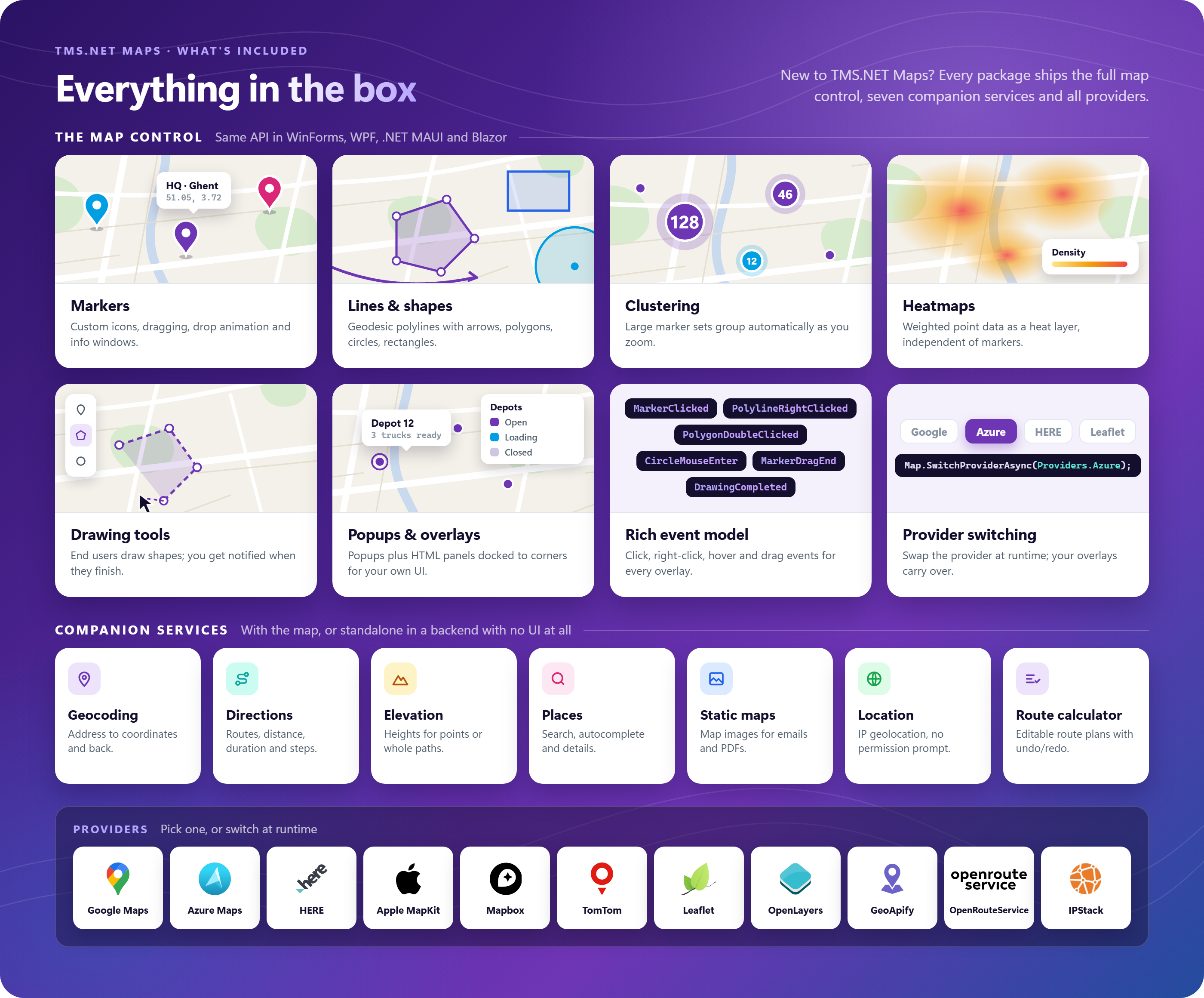
If you are new to TMS.NET Maps, this is what every open beta package gives you. The map control works the same way in WinForms, WPF, .NET MAUI and Blazor, and it comes with:
- Markers with custom icons, dragging, drop animation and info windows.
- Lines and shapes: polylines (including geodesic lines and arrow symbols), polygons, circles and rectangles.
- Clustering that groups large marker sets automatically as the user zooms.
- Heatmaps that render weighted point data as a heat layer.
- Drawing tools that let end users draw shapes on the map, with an event when they finish.
- Popups and custom overlays: anchored popups, plus HTML panels you dock to a corner of the map for legends, search boxes or mini dashboards.
- A rich event model: click, right-click, double-click, hover and drag events for markers, polylines, polygons, circles and rectangles.
- Runtime provider switching: one call swaps the provider, and your overlays carry over.
Next to the map control, seven companion services are included:
- Geocoding: address to coordinates and back.
- Directions: routes with distance, duration, turn-by-turn steps and the route geometry.
- Elevation: heights for a single point or a whole path.
- Places: search, autocomplete and place details.
- Static Maps: map images for emails, PDFs and thumbnails.
- Location: IP-based geolocation, without a permission prompt.
- Route Calculator: editable route plans with undo and redo, which can draw themselves on a map.
They are plain service classes that don't need a map control or any UI framework, so they work just as well in an ASP.NET Core API or a background job.
Supported providers: Google Maps, Azure Maps, HERE, Apple MapKit, Mapbox, TomTom, Leaflet, OpenLayers, GeoApify, OpenRouteService and IPStack.
Already in the closed beta?
Moving over takes a few minutes:
- Replace your
TMS.Maps.*package references from the private feed with the.Trialpackage for your framework from nuget.org. You can drop the private feed from yournuget.config. - In XAML, update the assembly in your namespace declaration:
assembly=TMS.Maps.UI.Wpfbecomesassembly=TMS.Maps.Wpf(and the same for MAUI). - Request a beta key and add the
TMSLicensing.RegisterLicensecall at startup.
Your map and service code carries over as is.
How long does the open beta run?
The current open beta builds work until December 31, 2026. Each beta build carries a fixed end date, and we will publish updated packages during the beta, so keep your package up to date to keep evaluating. TMS.NET Maps is beta evaluation software and not intended for production use yet. Your feedback during this period is what shapes the 1.0 release.
Try it today and tell us what you think
Make sure your project targets .NET 10, install the package for your framework, grab a free key on the TMS .NET page, and put a map in your app. Then let us know how it went: bug reports, missing features and first impressions of the API are all welcome.
- The TMS.NET Maps support forum
- Email: info@tmssoftware.com
- Or simply click the feedback link in the beta strip at the bottom of the map
TMS.NET Maps brings the cross-platform mapping engine behind TMS FNC Maps to WinForms, WPF, .NET MAUI and Blazor on .NET 10: one API, eleven providers, and every overlay, clustering, heatmap and routing feature you'd expect, in native .NET. The open beta is free and available now on nuget.org. Request your beta key.
Bradley Velghe

This blog post has not received any comments yet.
All Blog Posts | Next Post | Previous Post