Blog
All Blog Posts | Next Post | Previous Post

 From Data Selection to PDF: Combining FNC DataGrid, Chart and Popup Menu
Monday, September 28, 2026
A compact contextual reporting workflow
This example demonstrates how several TMS FNC components can work together without introducing a complex user interface.
The FNC DataGrid provides the data and selection. The FNC Chart components transform that selection into different visualizations. The FNC Popup Menu brings those visualizations directly to the location where the user is working. Finally, the FNC PDF Engine combines the grid and selected chart into a report.
Most importantly, the example shows the flexibility of TTMSFNCPopupMenu. By hosting complete controls inside menu items, it can become a contextual preview window, compact editor or action panel rather than just another list of commands.
In this case, users can explore several chart types, preview the result and generate the preferred report without leaving the DataGrid.
Starting with the TMS FNC DataGrid
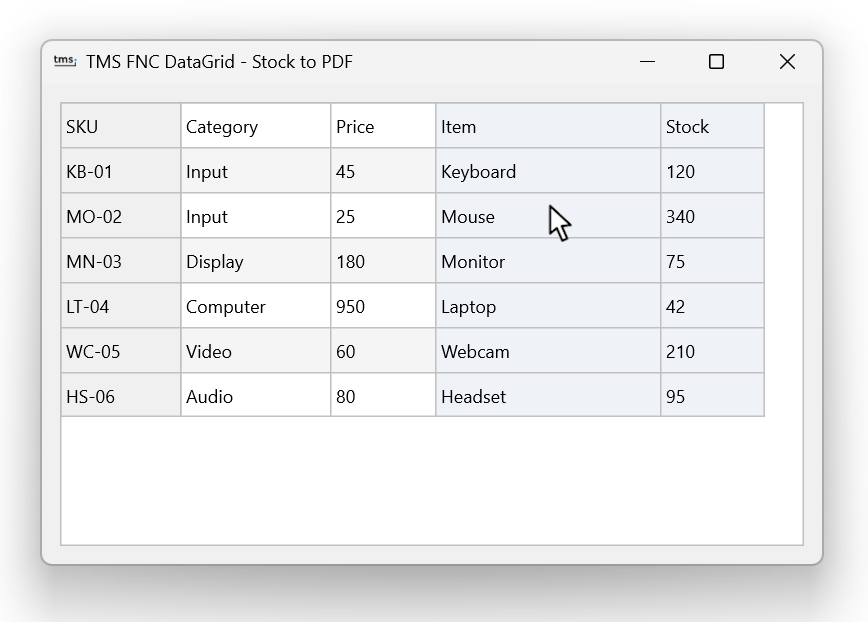
The application displays a small stock overview containing product information such as the SKU, category, price, item name and current stock level.
For this example, the DataGrid uses cell-range selection:
TMSFNCDataGrid1.Options.Selection.Mode := gsmCellRange;This allows users to select a rectangular range of cells. By selecting the Item and Stock columns, the item names can be used as chart labels while the stock values become the numerical chart data.
The popup menu is connected to the DataGrid through its PopupMenu property. This keeps the reporting actions close to the data: users first choose what they want to visualize and then open the popup menu from that same selection.
More than a standard popup menu
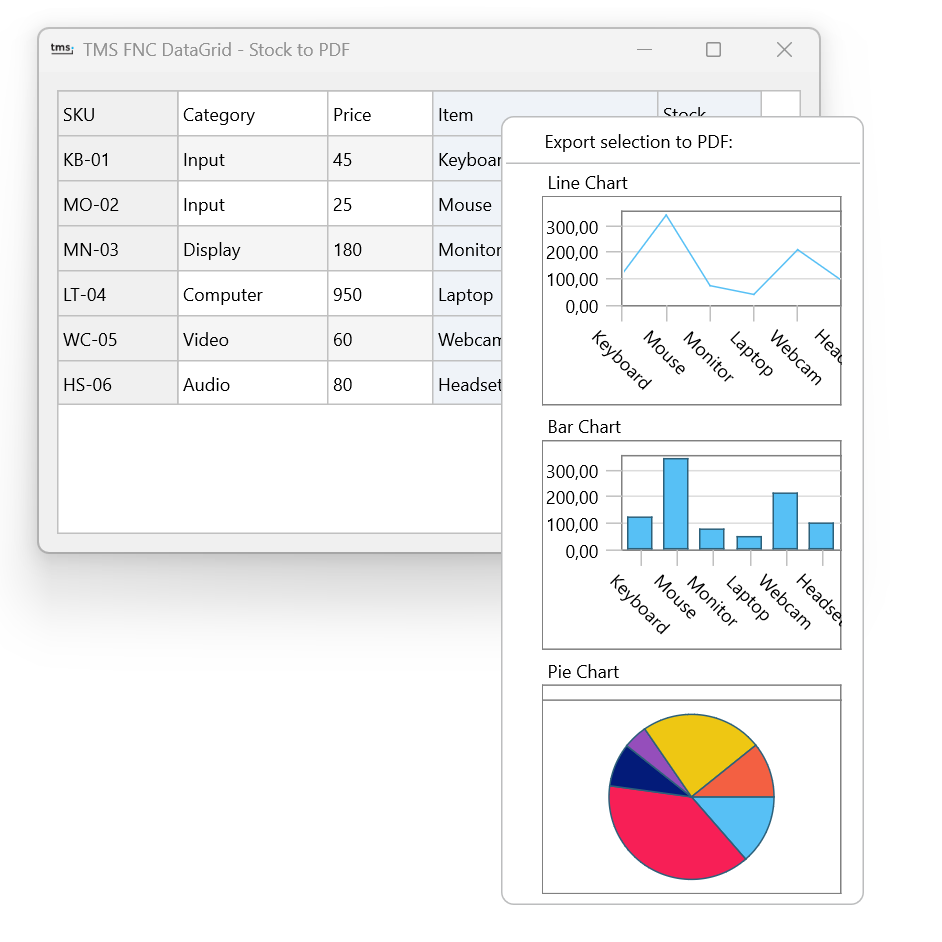
The central component in this example is TTMSFNCPopupMenu. Besides regular menu items, captions and separators, a menu item can contain a complete control.
A popup menu is typically used to present a short list of actions such as copy, edit or delete. With TMS FNC Popup Menu, however, you are not limited to text and icons. Menu items can also host other controls, opening the door to much richer contextual interactions.
A popup menu is typically used to present a short list of actions such as copy, edit or delete. With TMS FNC Popup Menu, however, you are not limited to text and icons. Menu items can also host other controls, opening the door to much richer contextual interactions.
In this example, the result is more than a conventional context menu. It becomes an interactive preview and action panel that remains directly connected to the data selected by the user.
We start by adding a non-selectable caption and a separator:
MenuItem := TMSFNCPopupMenu1.AddMenuItem(
  'Export selection to PDF:',
  mitDefault
);

MenuItem.Selectable := False;

TMSFNCPopupMenu1.AddMenuSeparatorItem;
The caption explains what the available actions do, but cannot itself be clicked. Below it, we add three selectable items for a line chart, bar chart and pie chart.
Each item contains an embedded TTMSFNCChart. The following code creates the bar chart option:
MenuItem := TMSFNCPopupMenu1.AddMenuItem(
  'Bar Chart',
  mitDefault
);

MenuItem.OnClick := DoOnMenuItemBarClick;

cBar := TTMSFNCBarChart.Create(Self);
cBar.Width := 200;
cBar.Height := 140;

MenuItem.Control := cBar;
MenuItem.ControlAlignment := caBottom;
The important properties here are Control and ControlAlignment. Instead of limiting the item to a caption or image, the Control property lets us embed the complete chart inside the menu item.
At the same time, the item remains selectable. The chart acts as a visual preview, while clicking the menu item executes the corresponding PDF export.
The same approach is used for the line and pie chart options:
cLine := TTMSFNCChart.Create(Self);
cBar  := TTMSFNCBarChart.Create(Self);
cPie  := TTMSFNCPieChart.Create(Self);
This illustrates how a TMS FNC Popup Menu can be used for much more than a conventional action list. Embedded controls could also be used to display color selectors, formatting options, status information, filters, previews or other contextual tools.
Refreshing the previews when the popup opens
The chart previews must always represent the current DataGrid selection. For that reason, they are populated immediately before the popup menu becomes visible.
procedure TForm1.TMSFNCPopupMenu1Popup(Sender: TObject);
begin
  PlotSelection(cLine);
  PlotSelection(cBar);
  PlotSelection(cPie);
end;
Every time the user changes the selection and opens the popup menu, all three previews are regenerated. There is no need to maintain a separate preview panel or require the user to press an additional refresh button.
This is especially useful for contextual interfaces: the popup is created where the user is already working and shows information that is relevant to the current selection.
Converting the selection into chart data
The selected cell range can be retrieved directly from the DataGrid:
sel  := TMSFNCDataGrid1.Selection;
xcol := sel.StartCell.Column;
ycol := sel.StopCell.Column;
In this example, the leftmost selected column is treated as the X-axis or category column. The rightmost selected column supplies the Y-values.
The code also checks whether the first selected row contains a header. If it does, that row is skipped when collecting the numerical data and its text is used as the report title.
if IsText(ycol, sel.StartCell.Row) then
begin
  legend := TMSFNCDataGrid1.ValueToString(
    TMSFNCDataGrid1.Cells[ycol, sel.StartCell.Row]
  );

  firstDataRow := sel.StartCell.Row + 1;
end
else
begin
  legend := '';
  firstDataRow := sel.StartCell.Row;
end;
Text values in the first selected column become category labels. When the first column contains numerical data instead, those values can be used as regular X-values.
if xIsText then
  s := AChart.AddSeriesFromDataArray(yvals, nil, xlabels)
else if hasXCol then
  s := AChart.AddSeriesFromDataArray(yvals, xvals)
else
  s := AChart.AddSeriesFromDataArray(yvals);
The same data-loading code is used for every preview. The actual visualization depends on the chart class passed to the method. This keeps the selection logic independent of whether the result is displayed as a line, bar or pie chart.
Turning a preview into an action
The embedded controls do not prevent the menu items from behaving like regular actions. Each item has its own OnClick handler:
procedure TForm1.DoOnMenuItemBarClick(Sender: TObject);
begin
  ExportChart(cBar, 'BarChart');
end;
When the user chooses a chart, the selection is plotted once more to ensure that the exported version contains the latest data. A save dialog is then displayed and the report is generated using the selected chart.
For the pie chart, the exported version additionally enables its legend so that each slice can be identified clearly in the larger PDF layout.
Generating the PDF report
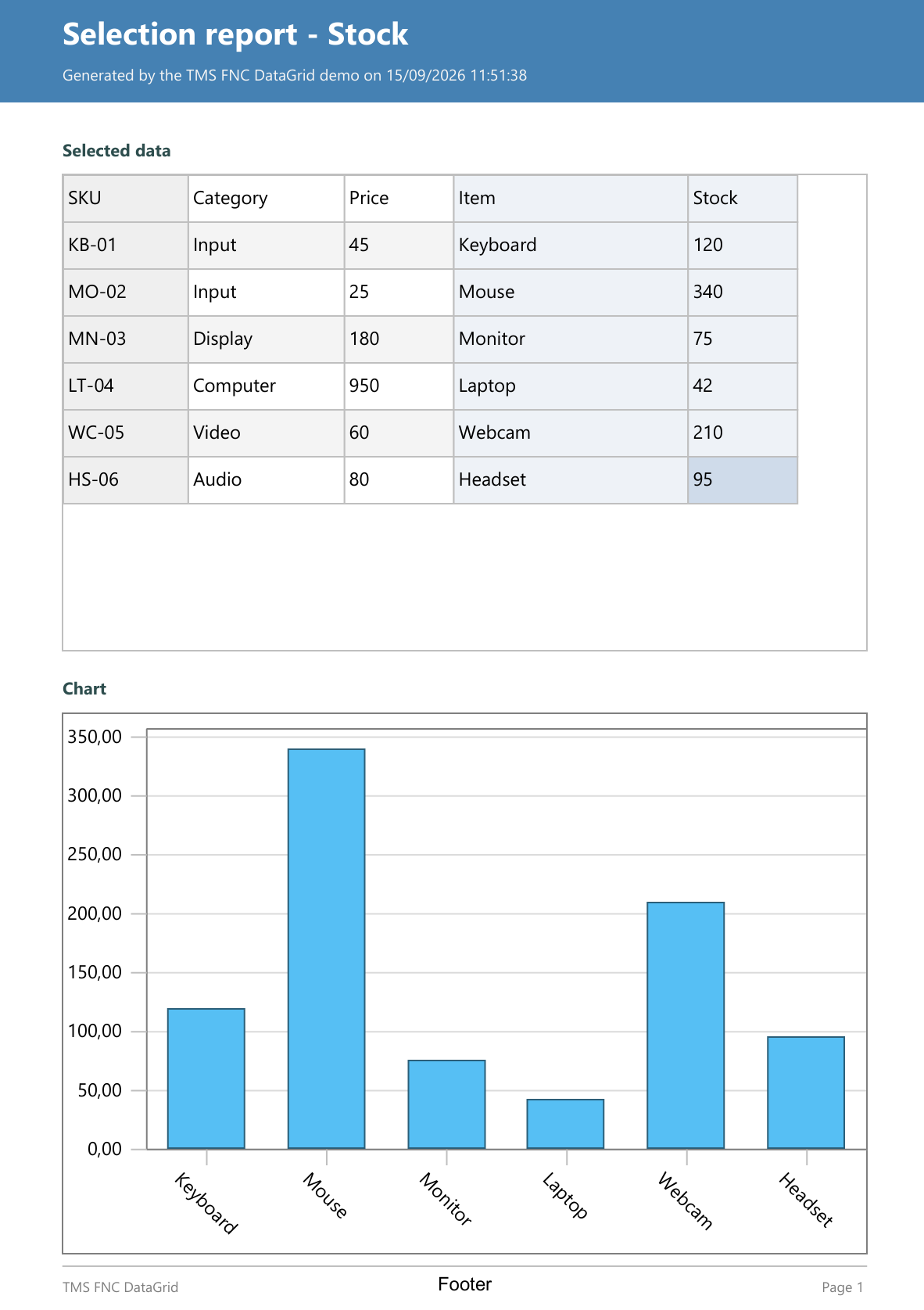
The report is created with TTMSFNCPDFLib and TTMSFNCGraphicsPDFEngine. An A4 page is divided into several areas for the header, DataGrid, chart and footer.
pdf := TTMSFNCPDFLib.Create(nil);
try
  pdf.PageSize := psA4;
  pdf.PageOrientation := poPortrait;
  pdf.BeginDocument(AFileName);
  pdf.NewPage;

  eng := TTMSFNCGraphicsPDFEngine.Create(pdf);
  try
    // Draw the report content
  finally
    eng.Free;
  end;

  pdf.EndDocument;
finally
  pdf.Free;
end;
The PDF Graphics Engine provides familiar drawing functionality for creating the surrounding report layout. In this example, it is used to draw a colored header, section labels, a footer and the generation date.
Both the TMS FNC DataGrid and TMS FNC Chart support the ITMSFNCGraphicsExport interface. This allows the controls to render themselves directly to the PDF Graphics Engine.
if Supports(TMSFNCDataGrid1, ITMSFNCGraphicsExport, ge) then
  ge.Export(eng, rGrid);

if Supports(AChart, ITMSFNCGraphicsExport, ge) then
  ge.Export(eng, rChart);
The complete DataGrid is included in the report with the current selection visible, followed by the chart chosen from the popup menu.
Because the export is based on the FNC graphics interfaces, the chart does not need to be captured as a temporary screenshot. It is rendered directly through the PDF engine into the assigned report area.
Bringing richer actions closer to your data
This example started with a simple question: why should users choose a chart type without seeing what the result will look like?
By embedding live chart previews inside TTMSFNCPopupMenu, users can compare the available visualizations before taking action. The selected chart can then be combined with the original data in a professionally structured PDF report—all within the same contextual workflow.
While this example focuses on chart selection and PDF generation, the same technique can be applied to many other scenarios. A popup menu could host formatting controls, filter options, color selectors, configuration panels or any other control that helps users make a more informed choice.
With the flexibility of the TMS FNC components, contextual actions no longer need to be limited to a list of commands. They can become interactive experiences that help users preview, decide and act without interrupting their workflow.
Gjalt Vanhouwaert

This blog post has not received any comments yet.
All Blog Posts | Next Post | Previous Post