Blog
All Blog Posts | Next Post | Previous Post

 Protect your public MCP servers with authentication in TMS AI Studio 1.8.0.0
Tuesday, August 18, 2026
Model Context Protocol (MCP) is the standard that lets AI clients like Claude Desktop, ChatGPT, Cursor, ... call out to your own tools. An MCP server exposes a set of functions, the assistant reads their descriptions, decides when to call them, and feeds the results back into the conversation.
As long as that server only talks to itself on your own machine, it doesn't need to ask "who's calling?" The moment it becomes a real server instead — reachable over the network, used by a colleague, or connected to from Claude Desktop on someone else's computer — that question matters a lot.
You've actually already answered that question dozens of times, just not for MCP. Every time you click "Continue with Google" or "Sign in with Microsoft" on some website, a login screen pops up, you approve it, and you're dropped back into the app, now connected. That familiar dance is called OAuth, and it's exactly the mechanism MCP uses to let an AI assistant connect to your server safely.
In this post we build that mechanism in Delphi. No prior knowledge of OAuth required — we'll explain each piece in plain terms as we go, then show the real, compiling Delphi code behind it.
- It's the same well-known approach used by "Sign in with Google" and every other app you've connected an account to — not something custom or proprietary.
- Turning it on for an existing MCP server is a one-line switch, not a rewrite.
- It's been tested against real AI assistants — MCP Inspector, Claude Desktop and ChatGPT have all connected through this exact code.
The two servers involved
There are two separate pieces at play here, and keeping them separate is the whole point.
One is your actual MCP server — the one with the tools the AI wants to call. The other is a small login and permissions service, whose only job is to check who someone is and hand out a token proving it. Your MCP server never checks logins itself; it just asks the login service, every time, "is this token still good, and what's it allowed to do?"
Two separate services; your MCP server trusts nothing it hasn't just double-checked with the login service.
Turning it on
If you already have an MCP server built with the TMS MCP SDK, requiring a login is not a rewrite. It's a handful of lines on the transport you already created.
Transport := TTMSMCPStreamableHTTPTransport.Create(nil, 8934, '/mcp');
Transport.RequireBearerAuthentication := True;
Transport.AuthorizationServers.Add(AuthorizationServerIssuer);
Transport.ResourceScopesSupported.Add('demo:read');
Transport.ResourceScopesSupported.Add('demo:write');
Transport.RequiredScopes.Add('demo:read');
Transport.OnValidateAccessToken := Handlers.ValidateAccessToken;

Server.Transport := Transport;
RequireBearerAuthentication := True is the actual switch: every request now needs a valid token attached, or it's refused. AuthorizationServers tells your server which login service to trust, and ResourceScopesSupported lists the permissions that exist (here, "read" and "write" access to a notes list) — both get automatically announced to any AI client that asks, so nothing needs to be configured by hand on the client side.
The one piece the SDK deliberately leaves to you is OnValidateAccessToken: the actual check of "is this token real, and what does it allow?" Different login services hand out tokens in different formats, so that decision is yours, not the transport's.
Checking a token: always ask, never assume
Here is the demo's real implementation of that check. It calls the login service and asks it directly, rather than trying to verify the token by itself.
procedure TDemoAuthHandlers.ValidateAccessToken(Sender: TObject; const AToken, AResourceURI: string;
  var AValidation: TTMSMCPAccessTokenValidation);
var
  Http: TIdHTTP;
  ReqBody, RespBody: TStringStream;
  Json: TJSONObject;
  Audience: string;
begin
  AValidation.Valid := False;

  Http := TIdHTTP.Create(nil);
  ReqBody := TStringStream.Create('token=' + TTMSMCPUtils.URLEncode(AToken));
  RespBody := TStringStream.Create;
  try
    Http.Request.ContentType := 'application/x-www-form-urlencoded';
    Http.Post(AuthorizationServerIssuer + '/introspect', ReqBody, RespBody);

    Json := TJSONObject.ParseJSONValue(RespBody.DataString) as TJSONObject;
    if not Assigned(Json) or not Assigned(Json.GetValue('active')) or
      not (Json.GetValue('active') as TJSONBool).AsBoolean then
      Exit; // not valid - AValidation.Valid stays False

    // Make sure this token was actually meant for THIS server, not some
    // other one the same login service happens to protect.
    Audience := '';
    if Assigned(Json.GetValue('aud')) then
      Audience := Json.GetValue('aud').Value;
    if Audience <> AResourceURI then
      Exit; // valid token, but issued for a different server - reject anyway

    AValidation.Valid := True;
    AValidation.Subject := Json.GetValue('sub').Value;
    AValidation.Scopes := Json.GetValue('scope').Value.Split([' ']);
  finally
    RespBody.Free; ReqBody.Free; Http.Free;
  end;
end;
That middle check — confirming the token was actually meant for this server — matters more than it looks. Without it, a token handed out for some other server (that happens to share the same login service) would be accepted here too, just because it was technically "still valid". Checking who a token was meant for is what stops it from being reused somewhere it was never supposed to work.
Put together, every single request runs through the same short checklist before a tool ever gets called:
Every call is double-checked with the login service before a tool ever runs.
What it looks like in Claude Desktop
All of the above is what makes this work under the hood. Here's what it actually looks like from the other side, adding this server to Claude Desktop as a custom connector — and it will look familiar, because it's the same "sign in and approve" pattern as any other app.
Add the connector's address and hit Connect. Approve on the sign-in screen that opens, and the connector shows connected:

Before — not yet connected |

After — approved and connected |
In between sits the sign-in screen itself — plain HTML, served straight from the Delphi backend, no client-side JavaScript involved:
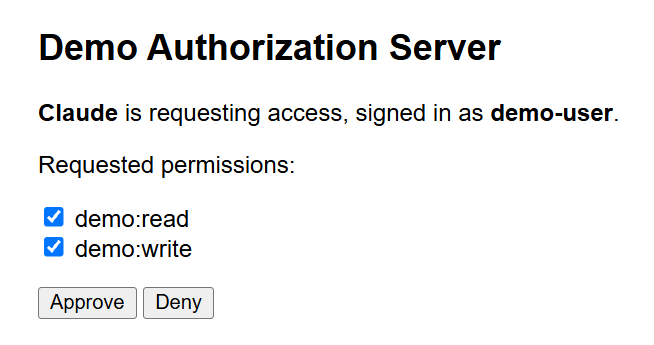
The sign-in screen: plain server-rendered HTML, nothing exotic needed to make this part work.
The permissions you approve here decide what a token is allowed to do. Claude adds its own, separate layer of consent on top of that, per tool, before it will actually use anything:
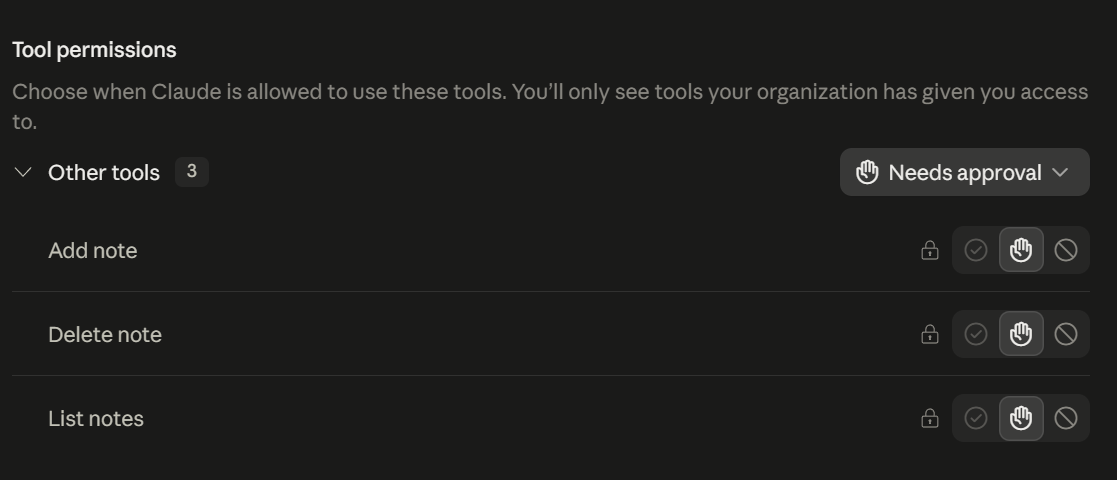
Claude's own tool-permission setting, independent of what you approved during sign-in.
Two separate checks, worth keeping apart: the sign-in step decides what a token is entitled to at all; Claude's own permission setting decides whether it will actually use a given tool right now without asking first. Approving "write" access during sign-in doesn't mean Claude will silently add a note — that second decision stays entirely with Claude, on your machine.
From demo to a real deployment
Both servers ship two ways: as plain console apps you can run and read top to bottom in an afternoon, and as installable Windows services (a proper install command, a config file, a log file to check) for when you actually want one sitting on a server.
We ran that exact path start to finish: built as Windows services, put behind IIS on a real domain with a real certificate, and connected end to end by MCP Inspector, Claude Desktop and ChatGPT — sign in, approve, and a live tool call, all the way through.
That last stretch — going from "it works on my own machine" to "it works on a real server, for anyone" — has its own sharp edges: what address the server needs to tell clients about once it's behind a proxy, a place where the sign-in step can get silently misdirected by proxy configuration, and a couple of real bugs we found and fixed along the way. We wrote all of that down separately, in detail, rather than compress it into a footnote here: see the documentation for the full setup-to-production walkthrough.
Why this matters
- Requiring a login is a one-line switch on the server you already have, not a rewrite of your tools.
- AI clients need no manual setup to connect — the whole sign-in process is standard and already understood by MCP-aware clients, the same way "Sign in with Google" already works everywhere without you configuring anything.
- Your MCP server trusts nothing by default; every token is checked with the login service, every time, and checked against being reused on the wrong server.
- The demo login service is built to be strict by default — it won't redirect anywhere it hasn't been explicitly told is safe.
- The same code that runs as a five-minute local demo is the code we actually deployed on a real server with a real domain — this isn't a toy that stops working the moment it leaves your own machine.
Get the demo
All four projects — the two console demos and their Windows-service counterparts — are in the distribution folder under Demos/OAuth Authorization Server Demo, Demos/OAuth Resource Server Demo, Demos/OAuth Authorization Server Service and Demos/OAuth Resource Server Service.
For everything past "it runs on my machine" — turning these into installable services, adding a certificate, and putting them behind IIS on a real domain, caveats included — the documentation walks through that in the order you'd actually run into each decision.
Clone it, point a client at it, and watch the whole sign-in happen without writing a single line of client-side authentication code.
TMS AI Studio is the complete toolkit for bringing AI and the Model Context Protocol to your Delphi applications. Build MCP servers and clients, connect Claude and other assistants to your own tools and data, and add cloud AI to your VCL and FMX apps — all in native Delphi. Discover TMS AI Studio.
Bradley Velghe

This blog post has received 1 comment.
All Blog Posts | Next Post | Previous Post
I have the current version 1.8.0.0, and the `RequireBearerAuthentication` property is missing there, for example.
Silber Felix