Blog
All Blog Posts | Next Post | Previous Post

 Filtering in Delphi: Let Users Filter Naturally
Friday, July 24, 2026
In the previous blog post, we showed you how to use the TTMSFNCFilterDialog, allowing users to build complex filter expressions through a guided interface.
That works well when users intentionally want to create or modify a filter.
However, many modern applications don't expose filtering as a separate action anymore.
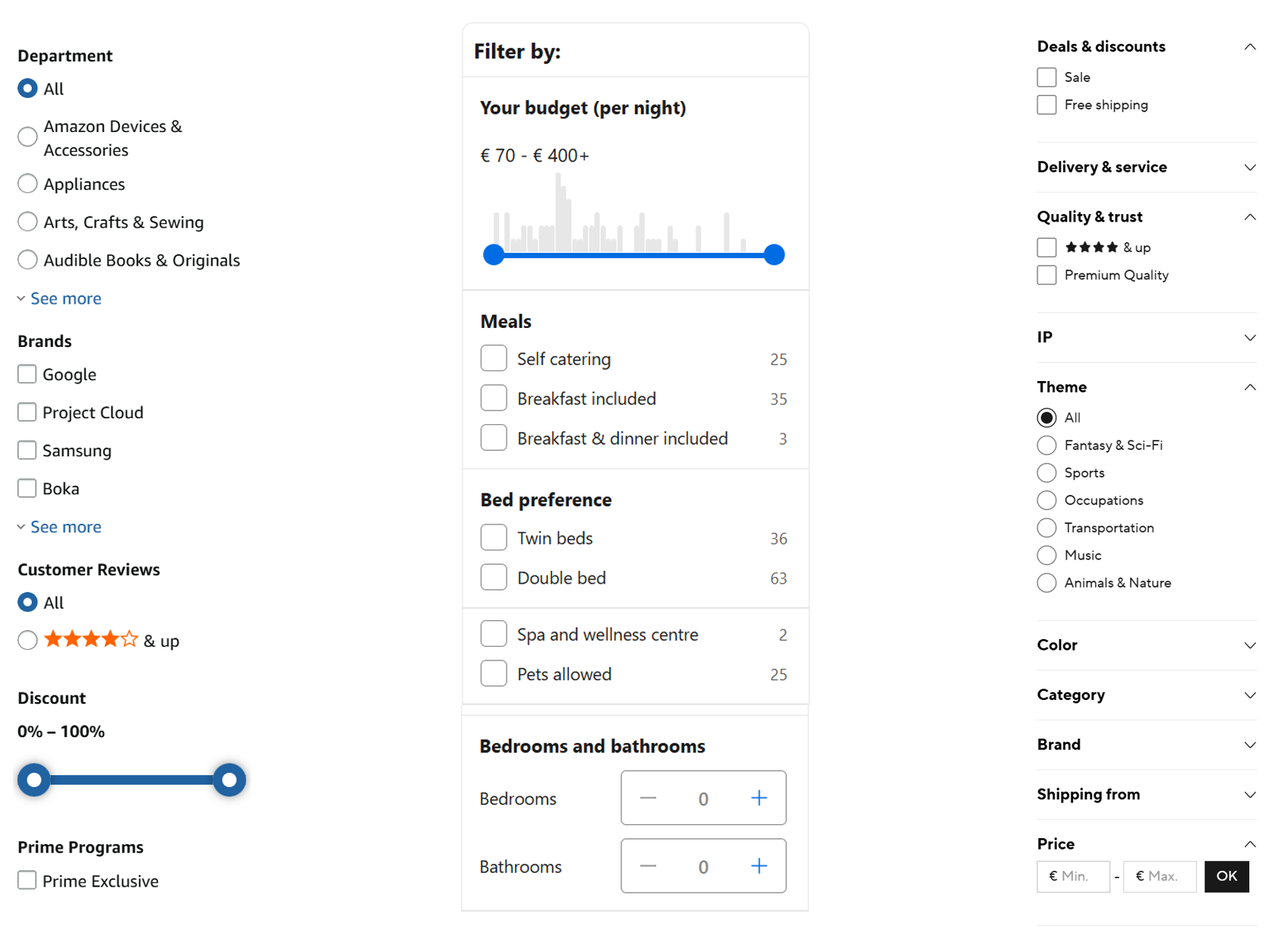
Think about a webshop.
You don't open a filter editor or write filter expressions.
You simply select a category, choose a few brands, move a price slider and perhaps select a delivery date.
The results update automatically while you interact with the page.
That is exactly the idea behind TTMSFNCFilterView.
Filtering Without Filter Expressions
The goal of the Filter View is simple.
Instead of asking users to create filter expressions, the application presents familiar controls that contribute to the filter automatically.
The user never needs to know that a filter expression exists.
Every interaction updates the underlying TTMSFNCFilterBuilder, keeping the filter synchronized in the background.
For example, instead of writing:
Country = 'Belgium' AND Age > 18
The user simply:
- Selects "Belgium" from a ComboBox
- Moves a slider to 18
The Filter View generates exactly the same filter structure that we built manually in the previous blog posts.
The Filter View Architecture
Internally, every filter control contributes one or more expressions to the same FilterBuilder.
This means every control is responsible for a small part of the complete filter.
For example:
- a CheckBox can generate a Boolean expression
- a ComboBox selects one value from a predefined list
- a DatePicker filters on a date
- a RangeSlider creates both a minimum and maximum value
- a ValueEdit combines a comparison operator with user input
The FilterBuilder combines all these expressions into one structured filter.
Because the same FilterBuilder is used, everything we discussed in the previous blogs still applies.
- Nested groups
- Different output formats
- Parsing
- Validation
The Filter View simply becomes another way of building that same filter.
Built-In Filter Controls
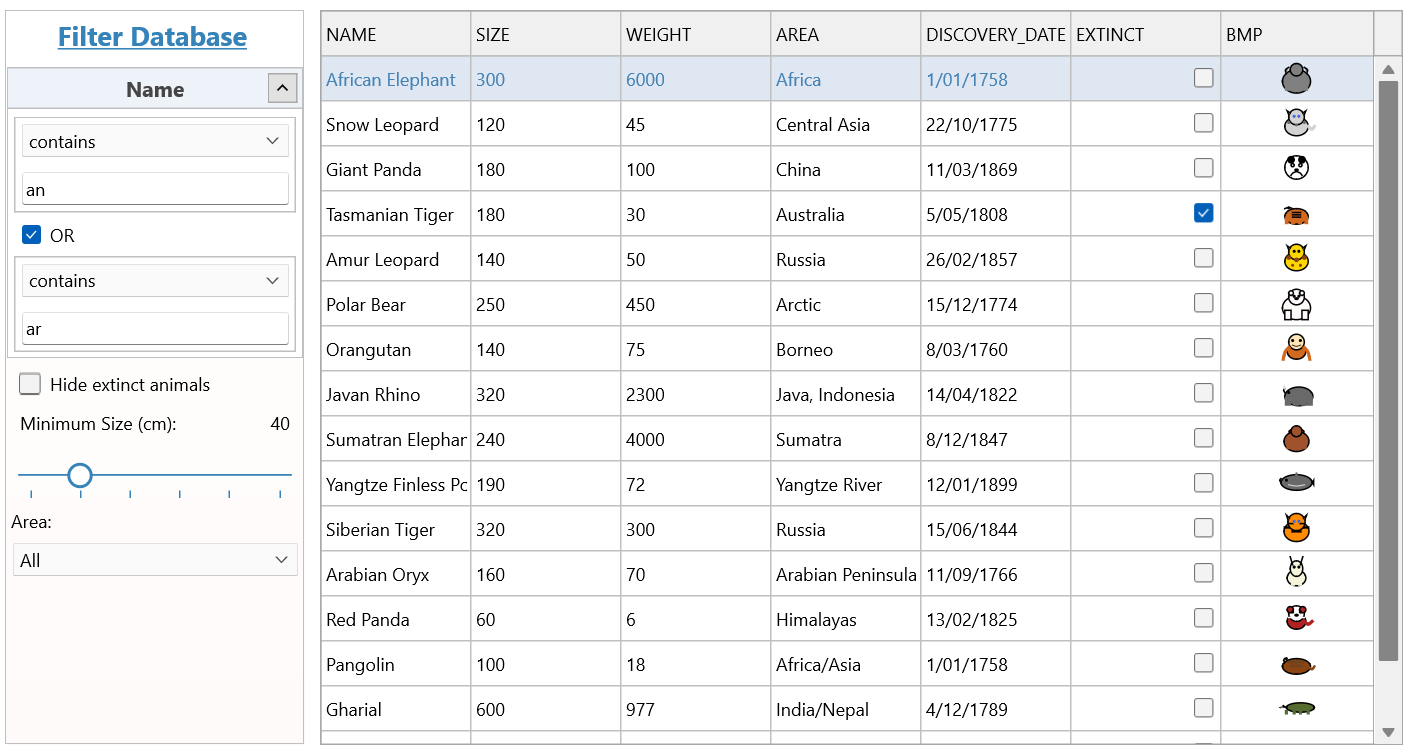
The Filter View already contains a rich collection of controls that cover many common filtering scenarios.
- CheckBox
- CheckGroup
- RadioButton
- RadioGroup
- ComboBox
- DatePicker
- TrackBar
- RangeSlider
- ValueEdit
Each control automatically updates its own FilterExpression whenever its value changes.
Because every control understands the type of data it represents, the resulting filter remains consistent.
Configuring Expressions
Every filter control has an associated FilterExpression.
This determines which part of the data the control affects.
Typically this consists of:
- the field name
- the field type
- the comparison operator
- an optional default value
For example, a ComboBox filtering countries can be configured like this:
FilterComboBox.FilterExpression.FilterFieldName := 'Country';
FilterComboBox.FilterExpression.FilterFieldType := fdtText;
FilterComboBox.FilterExpression.ExpressionOperator := feoEqual;
Whenever the selected value changes, the filter expression is updated automatically.
Likewise, a CheckBox could represent:
Active = True
without requiring any additional filter logic.
Building Complex Filters Naturally
Individual controls are useful, but real applications often require multiple filters working together.
Suppose we want users to filter:
- Employees from Belgium
- Who are currently active
- And joined after 2020
Instead of writing:
Country = 'Belgium'
AND Active = True
AND JoinDate > EncodeDate(2020,1,1)
The interface simply contains:
- a Country ComboBox
- an Active CheckBox
- a Join DatePicker
Every control updates its own expression, while the FilterBuilder combines them into one filter automatically.
Grouping Controls
Just like FilterBuilder supports nested groups, the Filter View can visually group controls together.
A GroupPanel represents one filter group.
Groups can use either AND or OR operators.
This makes it easy to recreate even complex nested filter structures without exposing that complexity to the user.
More Than Built-In Controls
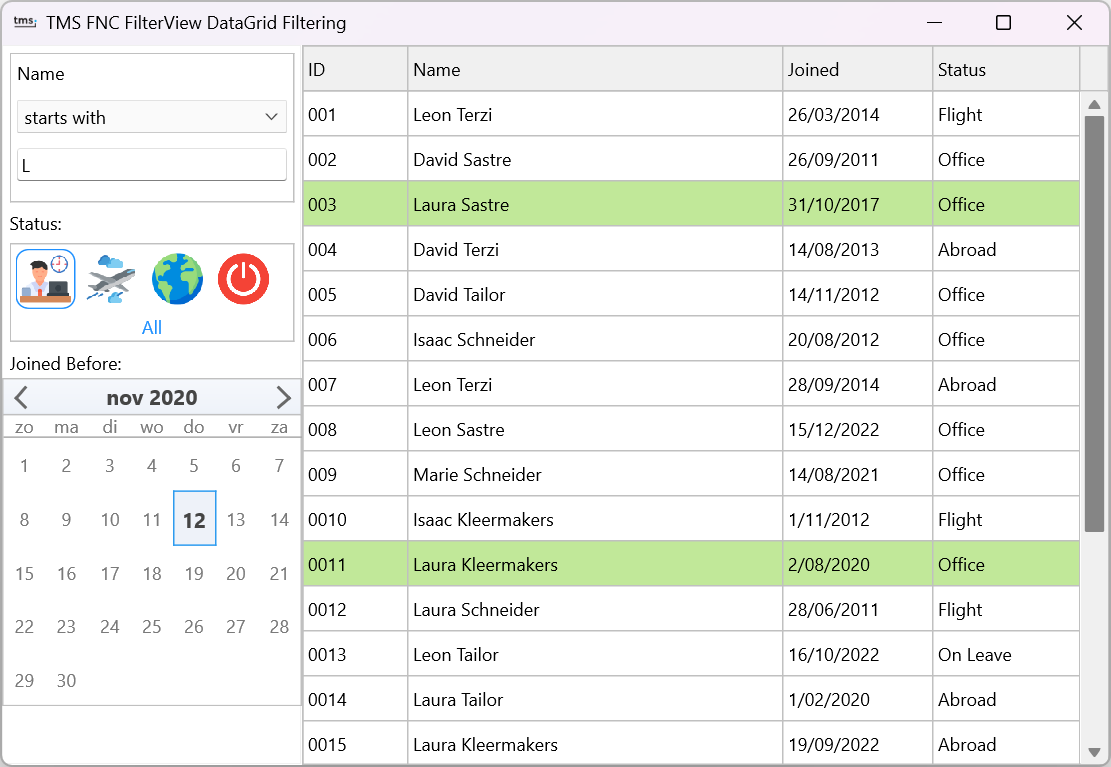
The built-in controls cover many common scenarios, but they are certainly not the limit.
TTMSFNCFilterView was designed to be extensible.
You can integrate virtually any existing control by using the TTMSFNCFilterViewControlContainer, or register your own controls directly with the Filter View.
This allows domain-specific interfaces without sacrificing the underlying filtering logic.
We've covered custom controls in more detail in a separate blog post, but the important takeaway is that the Filter View isn't limited to its built-in controls.
One Filter, Multiple Outputs
Because the Filter View builds upon the same FilterBuilder introduced earlier in this series, everything remains compatible.
You can still:
- Generate filter text.
- Assign the result to a DataSet.
- Validate rows.
- Filter object collections.
- Generate different filter formats.
The only difference is how the filter is created.
Instead of code or dialogs, the user simply interacts with the application.
Why Use TTMSFNCFilterView?
The Filter View provides a different user experience compared to a traditional filter dialog.
- Users interact with familiar controls instead of filter expressions.
- Filtering updates automatically while users work.
- The FilterBuilder stays synchronized behind the scenes.
- Complex filtering logic becomes easier to understand.
- The same filtering logic can still be reused throughout the application.
For many applications, this feels much more natural than asking users to open a separate filter dialog.
Next Step
So far in this series, we've focused on creating filters.
But filtering can do much more than determining which records are visible.What if the same filtering logic could also change colors, hide controls, enable actions, or modify properties?In the next blog post, we'll introduce TTMSFNCFilterRulesManager, where filter expressions become the starting point for dynamic application behavior.
Gjalt Vanhouwaert
Related Blog Posts
-
Filtering in Delphi: From Strings to Structured Logic
-
Filtering in Delphi: Generating, Parsing and Matching Filters
-
Filtering in Delphi: Visual Filter Building
-
Filtering in Delphi: See the Filter Dialog in Action
-
Filtering in Delphi: Let Users Filter Naturally
-
Filtering in Delphi: Building Modern Filter Interfaces
-
Filtering in Delphi: From Filtering Data to Filtering Properties
-
Filtering in Delphi: Building a Highlighting Property-Based Search

This blog post has not received any comments yet.
All Blog Posts | Next Post | Previous Post