Blog
All Blog Posts | Next Post | Previous Post

 Use Your Own Controls in the FNC Filter View
Monday, December 15, 2025
The TTMSFNCFilterView was introduced in TMS FNC UI Pack version 7.0. In the first blog post we demonstrated how to work with the built-in filter controls that are specifically designed for the Filter View.
In this follow-up, we take a look at a powerful aspect of the framework: integrating your own UI controls—whether custom-made or existing controls from other components—directly into the filtering logic. This gives you complete freedom to design intuitive, domain-specific filtering interfaces.
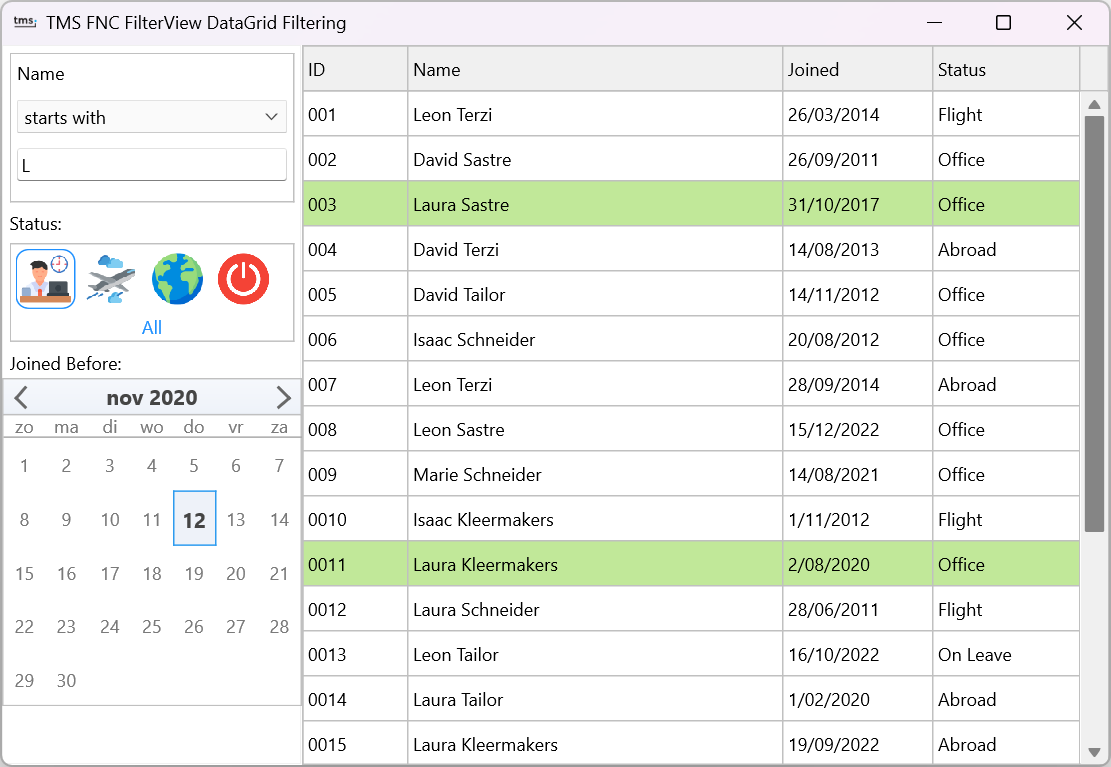
Filter View Control Container
The first approach is using the TTMSFNCFilterViewControlContainer.
This component acts as a bridge between any UI control and a FilterExpression.
Whenever a control changes its state, the container updates the corresponding filter expression automatically.
In the screenshot above, the control container manages a set of
TTMSFNCToolBarButton controls representing employee status values.
Each button click updates a filter expression that targets the Status field.
At design-time, the filter expression was configured like this:
ControlContainer.FilterExpression.FilterFieldName := 'Status';
ControlContainer.FilterExpression.FilterFieldType := fdtText;
ControlContainer.FilterExpression.ExpressionOperator := feoEqual;
ControlContainer.FilterExpression.AddToFilter := False;
At runtime, clicking one of the buttons updates the filter value.
If the "All" button is selected (index -1), the status filter is disabled entirely.
procedure TFilterViewDataGridForm.StatusClicked(AIndex: Integer);
begin
  OfficeBtn.DownState := AIndex = 0;
  FlightBtn.DownState := AIndex = 1;
  AbroadBtn.DownState := AIndex = 2;
  OnLeaveBtn.DownState := AIndex = 3;

  case AIndex of
    0: ControlContainer.FilterExpression.FilterValue := 'Office';
    1: ControlContainer.FilterExpression.FilterValue := 'Flight';
    2: ControlContainer.FilterExpression.FilterValue := 'Abroad';
    3: ControlContainer.FilterExpression.FilterValue := 'On Leave';
  end;

  ControlContainer.FilterExpression.AddToFilter := (AIndex <= 4) and (AIndex >= 0);
end;
This setup requires no additional plumbing. You remain fully in control of the UI while the filter expression stays perfectly in sync with your custom controls.
Filter View Custom Control Methods
For more advanced or dynamic scenarios, TTMSFNCFilterView exposes a set of methods that allow you to register any control programmatically and link it to filter items or filter groups. This is ideal when building complex UIs, using third-party controls, or creating filters at runtime.
In the example below, a TTMSFNCCalendar is attached to the Filter View.
It is mapped to the Joined field of a TTMSFNCDataGrid to show all employees onboard before a selected date.
TMSFNCFilterView1.AddCustomItemControl(
  FNCCalendar,
  FNCCalendar.SelectedDate,
  'Joined',
  fdtDate,
  feoSmallerThanOrEqual
);
Whenever the user picks a date, the filter value is updated immediately:
procedure TFilterViewDataGridForm.FNCCalendarSelectDate(Sender: TObject; ADate: TDate);
begin
  TMSFNCFilterView1.UpdateCustomItemControlValue(FNCCalendar, ADate);
end;
With just a few lines of code, any control becomes an active part of the filtering logic.
You can even combine multiple controls inside filter groups, override operators, or update filter expressions dynamically.
GetCustomItemControlFilterItem(AControl) you can retrieve the filter item linked to a custom control, giving you full programmatic access to its properties and enabling complete control over how the filter expression is managed or updated.
Conclusion
These two approaches—using the Filter View Control Container or the Custom Control Methods—allow you to integrate virtually any UI control into the FNC Filter View. Whether you're designing visual filters, dashboards, or domain-specific workflows, you can tailor the filter experience exactly to your users' needs.
We look forward to seeing the creative filtering interfaces you will build with the tools that are available in TMS FNC UI Pack!
Gjalt Vanhouwaert

This blog post has not received any comments yet.
All Blog Posts | Next Post | Previous Post