TAdvStringGrid
Example 67 : Using the Unicode features of TAdvStringGrid
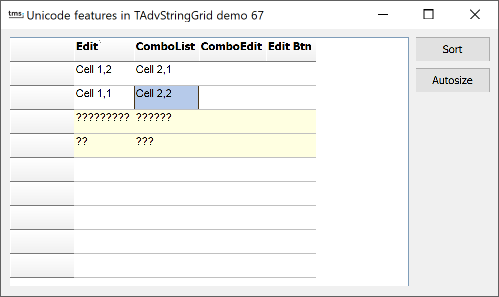 TAdvStringGrid has built-in capabilities to
display, edit, print, sort ... unicode text. It is important that a font is used
for the grid that supports all Unicode code pages that you want to use in your
application. The Microsoft "Arial Unicode MS" font is a font with complete
Unicode code pages. To use the Unicode features, following methods, properties
and events are available:
TAdvStringGrid has built-in capabilities to
display, edit, print, sort ... unicode text. It is important that a font is used
for the grid that supports all Unicode code pages that you want to use in your
application. The Microsoft "Arial Unicode MS" font is a font with complete
Unicode code pages. To use the Unicode features, following methods, properties
and events are available:
1) Getting & setting Unicode text:
This can be done using the properties
grid.WideCells[col,row]: widestring;
The Unicode text can also be set dynamically using the event grid.OnGetDisplWideText.
event OnGetDisplWideText(Sender: TObject; ACol, ARow: Integer; var Value: WideString);
Through the parameter Value, the Unicode text for cell ACol, ARow can be set.
2) Using Unicode inplace editors:
Several Unicode inplace editors are available.
edUniEdit: regular edit control for Unicode text edUniComboEdit: editable Unicode combobox edUniComboList: dropdownlist Unicode combobox edUniEditBtn: Unicode edit control with embedded button edUniMemo: Unicode memo inplace editor
It can be specified to use the Unicode inplace editors just like for other edit controls, ie. through the event OnGetEditorType. In the sample project, following code is used:
procedure TForm5.AdvStringGrid1GetEditorType(Sender: TObject; ACol,
  ARow: Integer; var AEditor: TEditorType);
begin
  case ACol of
  1: AEditor := edUniEdit;
  2: AEditor := edUniComboList;
  3: AEditor := edUniComboEdit;
  4: AEditor := edUniEditBtn;
  end;

  if ACol = 2 then
  begin
    AdvStringGrid1.UniCombo.Items.Clear;
    AdvStringGrid1.UniCombo.Items.Add(AdvStringGrid1.WideCells[1,1]);
    AdvStringGrid1.UniCombo.Items.Add(AdvStringGrid1.WideCells[1,2]);
    AdvStringGrid1.UniCombo.Items.Add(AdvStringGrid1.WideCells[2,1]);
    AdvStringGrid1.UniCombo.DropWidth := 120;
  end;

  if ACol = 3 then
  begin
    AdvStringGrid1.UniCombo.Items.Clear;
    AdvStringGrid1.UniCombo.Items.Add('Edit 1');
    AdvStringGrid1.UniCombo.Items.Add('Edit 2');
    AdvStringGrid1.UniCombo.Items.Add('Edit 3');
  end;
end;
This event handler prevents that row 1 & 2 are edited. For the other rows, it specifies that a edUniEdit, edUniComboList, edUniComboEdit and edUniComboEditBtn inplace editor are used. In addition, the Unicode combobox is preset with Unicode items. This is done through the property : grid.UniCombo.Items: TWideStrings;
Note that when using an Unicode inplace editor, the event OnGetEditText to dynamically get the text for editing is replaced by the event OnGetEditWideText. 3) Unicode sorting: The grid has built-in features for sorting Unicode text. To tell the grid that a specific column needs to be sorted using Unicode, the event OnGetFormat can be used and the format for the column can be specified by setting the sortstyle parameter to ssUnicode:
procedure TForm5.AdvStringGrid1GetFormat(Sender: TObject; ACol: Integer;
var AStyle: TSortStyle; var aPrefix, aSuffix: string);
begin
  AStyle := ssUnicode;
end;
Delphi project & source files for downloading included in the main demos distribution for Delphi.
×
![]()