TAdvStringGrid
Example 56 : using the new TAdvGridExcelIO component for reading and writing Excel files directly with TAdvStringGrid
With the new TAdvGridExcelIO component directly reading and writing Excel 97 or higher .XLS files without the need to have Excel installed on the machine is easier than ever.With these quick steps, you are up and running:
1) drop TAdvStringGrid on a form as well as the component TAdvGridExcelIO
2) Assign the instance of TAdvStringGrid to the AdvStringGrid property of the TAdvGridExcelIO component
3) You can set TAdvGridExcelIO properties to control the Excel file read / write behaviour but in most cases default settings will be ok.
4) To read Excel files, use
advgridexcelio.XLSImport(FileName);

or

advgridexcelio.XLSImport(FileName,SheetName);
5) To write the contents of TAdvStringGrid to an XLS file use
advgridexcelio.XLSExport(Filename);

or

advgridexcelio.XLSExport(FileName,SheetName);
Formatting Excel cells when exporting from with TAdvGridExcelIO.
By default there is no automatic conversion between the numeric formats in AdvStringGrid and Excel since they use different notations.
Imagine you have the number 1200 in the grid, formatted as "$1,200" . If you set TAdvGridExcelIO.Options.ExportCellFormat to true, the cell will be exported as the string "$1,200" to Excel. It will look fine, but it will not be a "real" number, and can not be used in Excel formulas.
If you set TAdvGridExcelIO.Options.ExportCellFormat to false, the cell will be exported as the number 1200. It will be a real number, that can be added later in Excel, but it will look like "1200" and not "$1,200"
To get a real number that is also formatted in Excel you need to set ExportCellFormat := false, and use the OnCellFormat event in AdvGridExcelIO, and set the desired format for the cell there.
For example, to have 1200 look like "$1,200" for the numbers in the third column, you could use this event (please add the unit tmsuflxformats in the uses list for this) :
procedure TMainForm.AdvGridExcelIO1CellFormat(Sender: TAdvStringGrid;
  const GridCol, GridRow, XlsCol, XlsRow: Integer; const Value: WideString;
  var Format: TFlxFormat);
begin
  if (GridCol = 3) then Format.Format:='$ #,##0';
end;
The string you need to write in "Format.Format" is a standard Excel formatting string. It is important to note that this string must be in ENGLISH format, even if your Windows or Excel is not in English.
This means that you must use "." as decimal separator and "," as thousands separator, even if they are not the ones in your language.
For information on the available Formatting string in Excel you can consult the Excel documentation, but there is normally a simple way to find out:
Let's imagine that we want to find out the string for a number with thousands separator and 2 decimal places. So the steps are: 1) Open an empty Excel file, right click a cell and choose "Format Cells"
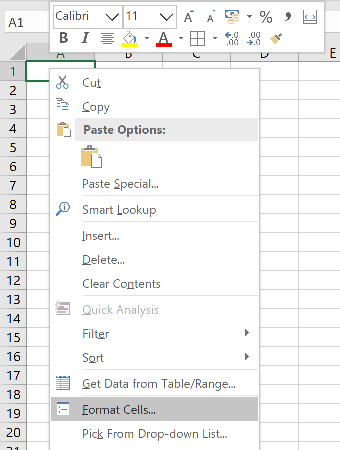 Once the window opens, choose the numeric format you want. Here we will choose a
numeric format with 2 decimal places and a thousands separator
Once the window opens, choose the numeric format you want. Here we will choose a
numeric format with 2 decimal places and a thousands separator
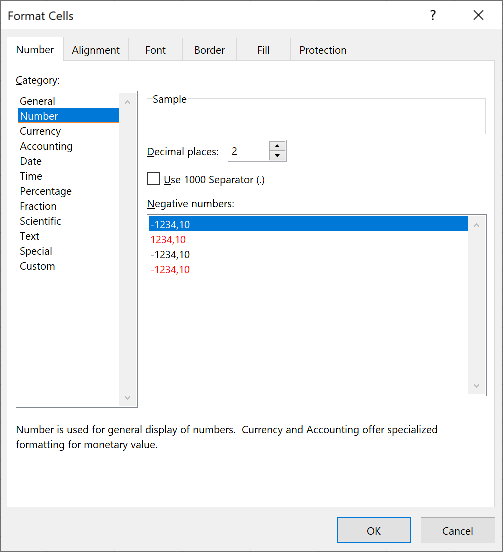 Once we have the format we want, we choose "Custom" in the left listbox. There
is no need to close the dialog.
Once we have the format we want, we choose "Custom" in the left listbox. There
is no need to close the dialog.
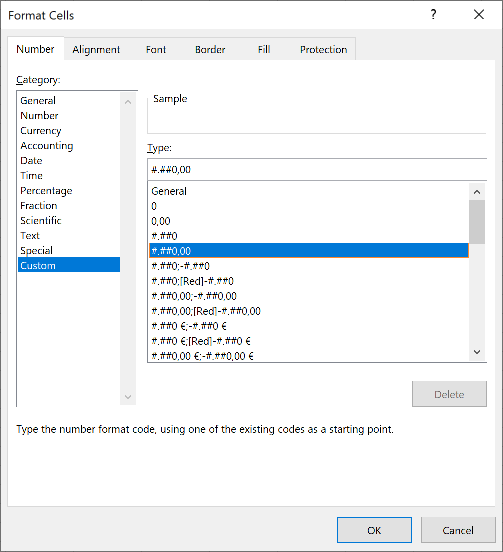 The string that shows in the "Type:" editbox is the one we need to use,
converted to English notation. In this example, since our decimal separator is
"," and the thousands "." we need to switch them in the final string.
The string that shows in the "Type:" editbox is the one we need to use,
converted to English notation. In this example, since our decimal separator is
"," and the thousands "." we need to switch them in the final string.
So, the string showing is "#.##0,00", and we need to switch "," and ".", so the final string is "#,##0.00" and the event is:
procedure TMainForm.AdvGridExcelIO1CellFormat(Sender: TAdvStringGrid;
  const GridCol, GridRow, XlsCol, XlsRow: Integer; const Value: WideString;
  var Format: TFlxFormat);
begin
  if (GridCol = 3) then Format.Format:='#,##0.00';
end;
By default, cells in TAdvStringGrid that contain numbers, will be exported as numeric cells in the Excel sheet. This means that such numeric cells can be used in Excel formulas. It also means that unless a format is specified, Excel will apply its own format to display the cell. This sometimes has unwanted effects where Excel will treat a cell like 23-001 as a date. To avoid this, we can instruct TAdvGridExcelIO to export a cell as string. This can be done globally, ie. for all cells or on a per cell basis. To globally set that all cells are exported as strings, set AdvGridExcelIO.Options.ExportCellFormats = true. To do this conditionally for selected cells only, this is done using the event OnExportColumnFormat. Assuming that cell 2,2 contains the text '23-001', following code will force that cell 2,2 is exported as a string:
procedure TForm4.AdvGridExcelIO1ExportColumnFormat(Sender: TObject; GridCol,
  GridRow, XlsCol, XlsRow: Integer; const Value: WideString;
  var ExportCellAsString: Boolean);
begin
  ExportCellAsString := (GridCol = 2) and (GridRow = 2);
end;
Please note that it is a limitation, inherent to the .XLS file format specification that the maximum number of rows is 65535 and maximum nr. of columns is 255. While TAdvStringGrid can handle much more rows and columns, export of grids with more rows or columns than what the .XLS file format can handle will fail. If there is a need to export more than 65535 rows or more than 255 columns, use grid.SaveToXLS() and specify a filename with .XLSX extension.
Import & export in .XLSX format
TMS TAdvStringGrid filters is a component based interface between TAdvStringGrid and TMS Flexcel to allow to import and export in the .XLSX file format. Free download of the interface components can be found at: https://www.tmssoftware.com/site/advgridfilters.asp
Delphi project & source files for downloading included in the main demos distribution for Delphi.
×
![]()